
Importing recipes you already have
If your recipes already exist somewhere, on your blog, in a Word document, on a printed card or on another website, you don't have to retype them. Recipe Kit has four ways to bring them in. This page helps you pick one.
Importing from your store and importing a single recipe work on every plan, with limits that depend on the plan. CSV import needs a paid plan. Compare plans on the Recipe Kit app listing.
Which one do I want?
| You have | Use |
|---|---|
| Recipes already published on your Shopify blog or pages | Import from your store |
| A recipe on a website, in a photo, in a PDF, or as text you can paste | Import a recipe |
| Everything in a spreadsheet, or hundreds of recipes | CSV import |
| A large or messy library and no time | The Manual recipe importing service |
Import from your store
Recipe Kit scans the blog posts and pages already on your Shopify store, finds the recipe content in them, and turns each one into a Recipe Kit recipe linked back to its original post. Your original posts and pages are left untouched, so nothing breaks if you change your mind.
This is the right starting point for most stores, because it needs nothing from you but a click.
- Open Recipe Kit and go to Tools.
- Under Import & export, select Import from your store.
- Under What to scan, choose Blog posts or Pages. For blog posts, pick the blog under Blog to scan.
- Click Scan for recipes. Scanning is free and doesn't count toward your limit.
- Tick the posts you want and click the import button. It names how many you picked, for example Import 3 recipes.
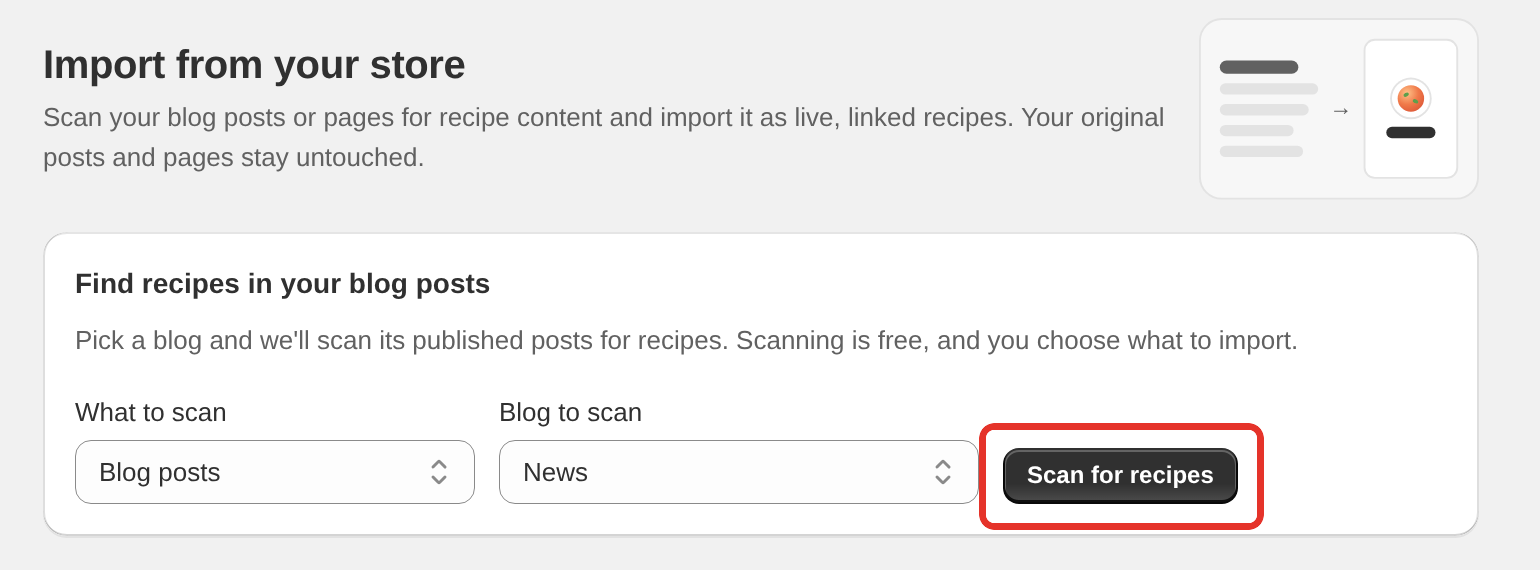
Recipes imported this way go live straight away.
| Plan | Imported recipes you can keep |
|---|---|
| Free | 5, shared with Import a recipe below |
| Essentials | 50 |
| Growth | 500 |
| Enterprise | 500 |
These limits count the imported recipes you still have. Delete one and its place is free again.
On Free, the 5 is also your total. The Free plan holds 5 recipes in all, whether you import them or write them yourself. See The Free plan.
Import a recipe
Point it at one recipe and it fills in the fields for you. Available on every plan, including Free.
- Open Recipe Kit and click New recipe.
- Choose Import a recipe. The import form opens below the options.
- Pick a tab:
- From URL. Any recipe page on the web
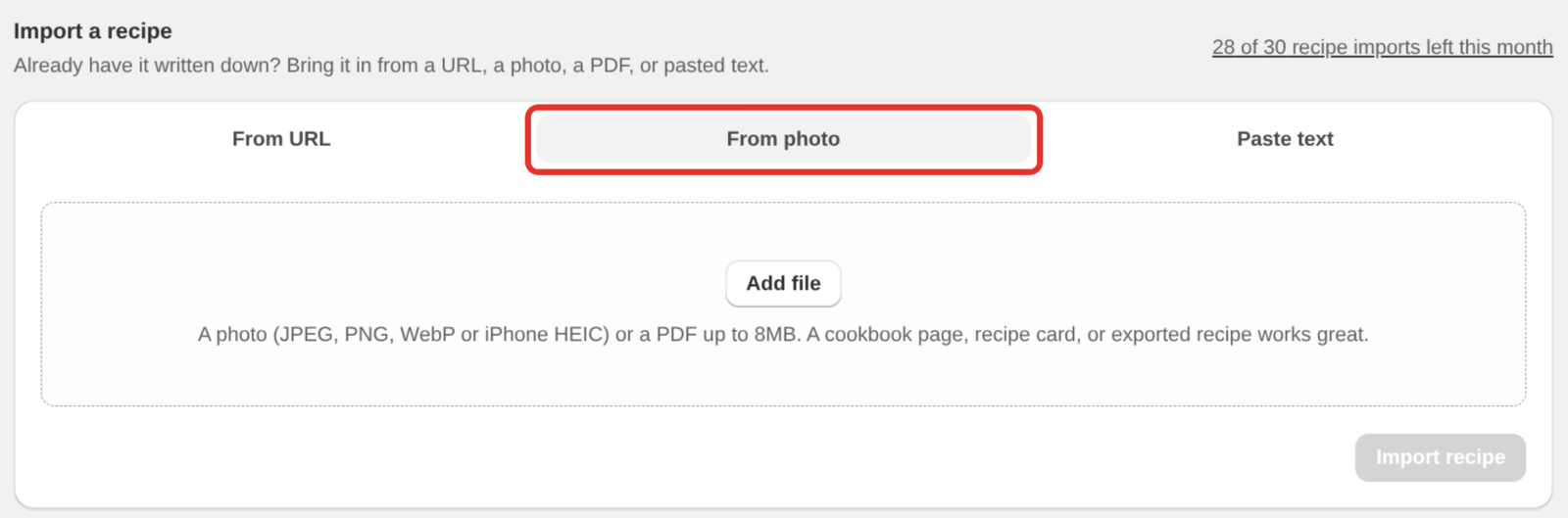
- From photo. A photo of a cookbook page or a handwritten card, or a PDF
- Paste text. Straight out of a document or an email
- Add the link, file or text and click Import recipe.
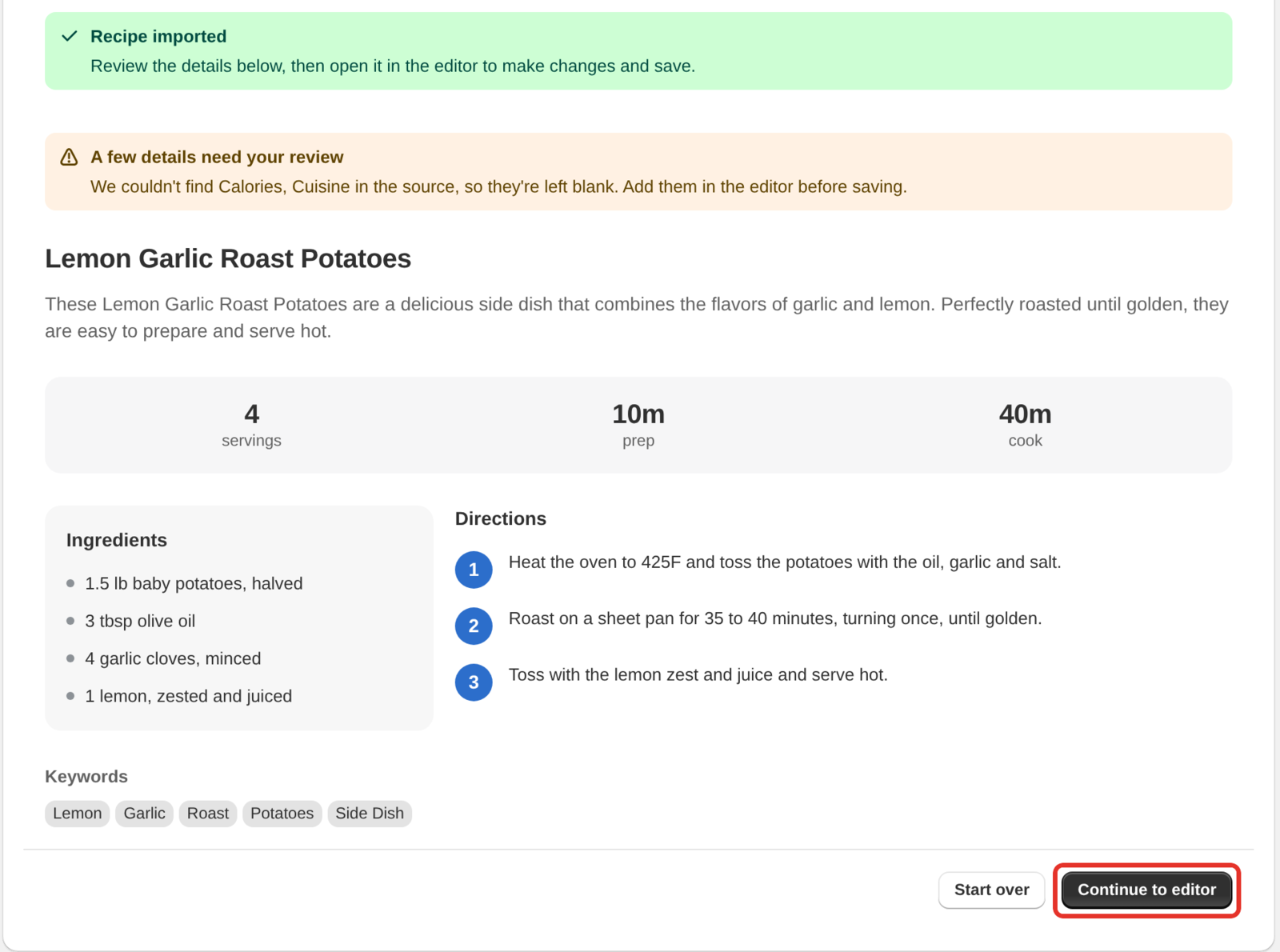
- Check the result. If the source was missing something, such as the cook time, the note A few details need your review says what to fill in. Click Continue to editor, or Start over to try another source.
- Change anything you like in the recipe editor, then click Create.
When you click Create, Recipe Kit makes a blog post for the recipe, the same as for any new recipe. See Creating recipes.
A post from your own blog. If the link you import is a post on your own store, the result says the recipe is from your post. Recipe Kit puts the recipe on that post instead of making a second copy. To get a separate post anyway, click Put it in a new post instead.
Photos and PDFs
From photo takes JPEG, PNG, WebP and iPhone HEIC photos, and PDFs.
- iPhone photos are converted for you, so you can upload them straight from your camera roll.
- Large photos are shrunk in your browser before they upload. A photo can be up to 40MB going in, and it has to come out under 8MB after shrinking. Phone photos almost always do.
- PDFs can be up to 8MB.
If a photo won't open, take a screenshot of it and upload the screenshot instead.
Read what comes back before you save. Imports get the structure, ingredients and steps right most of the time, and occasionally misread a quantity in a blurry photo.
| Plan | Imports |
|---|---|
| Free | 5, shared with the store import above |
| Essentials | 30 per month |
| Growth | 250 per month |
| Enterprise | Unlimited |
On Free, an import counts while its recipe is still in Recipe Kit. Monthly allowances reset on the 1st of each month.
CSV import
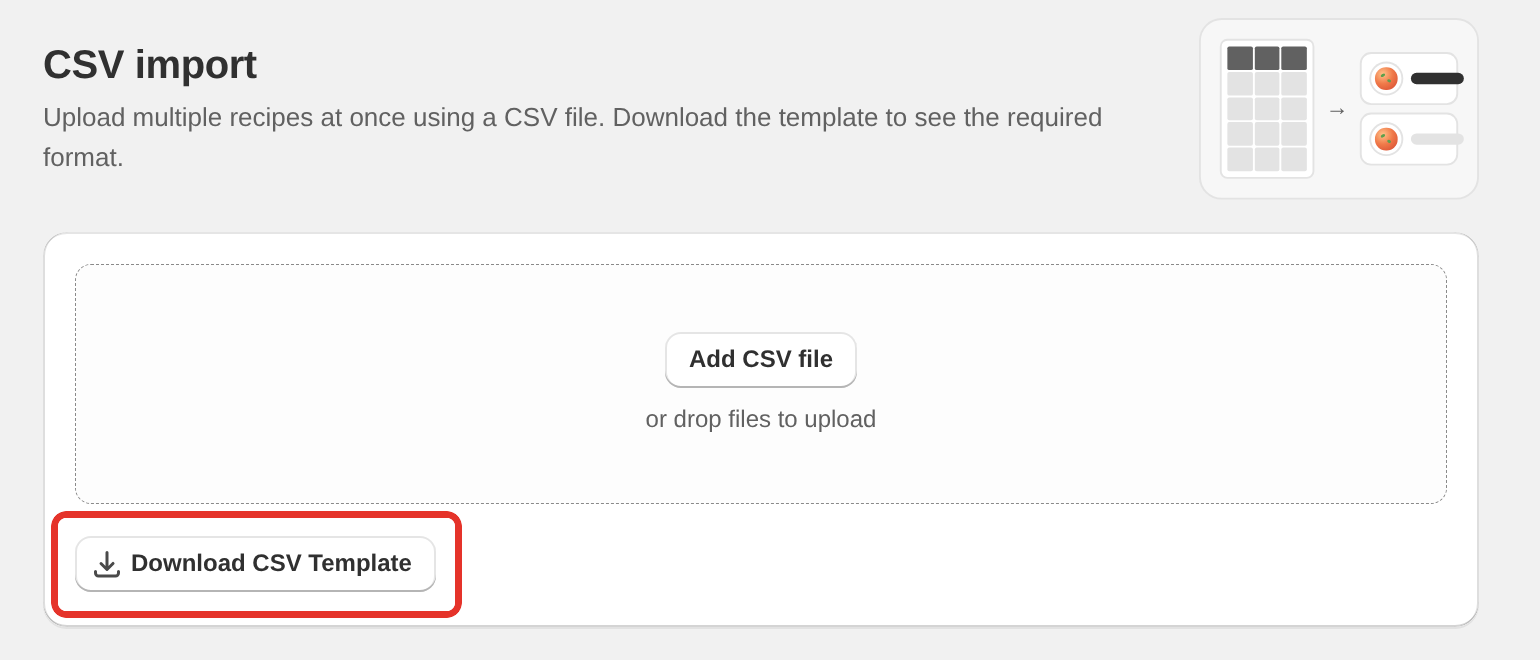
CSV import creates or updates many recipes at once from a spreadsheet. It can also create the blog posts as it goes. It needs a paid plan. Development stores can use it too.
- Open Recipe Kit and go to Tools.
- Select CSV import.
- Click Download CSV Template, fill it in, and upload it.
Use it for a bulk migration, or to make the same change across a lot of recipes. Export your recipes, edit the column in a spreadsheet, then re-import with Update existing recipes ticked.
Each row sets its own status from the status column, so a CSV can add live and hidden recipes in one go. For the column reference and formatting rules, see Bulk recipe import and export.
Exporting
Tools > CSV export works on every plan, including Free. Your recipes are yours, and you can take them out whenever you like. See Exporting recipes from your store.
After importing
Whichever route you took, a few things are worth doing.
Check a handful. Spot-check the ingredients and times on a few imported recipes rather than all of them. Import errors tend to repeat, so if three are right the rest usually are.
Add images. Imports bring images across where the source has them. Where it doesn't, the recipe has no image, and Google won't show a recipe without one as a rich result. See Recipe images, sizes and alt text.
Link your products. This is the step that turns imported content into sales. See Linking products to recipes.
Check the status. Recipes from Import from your store are live as soon as they're imported. CSV import uses each row's status column. A recipe from Import a recipe starts with your Default Recipe Status (Settings > Advanced), like every new recipe. That is Published unless you changed it, so it goes live when you click Create. Choose Hidden under Set visibility first if you want to check it before it goes live.
Generating is not importing
Draft it with AI, on the same New recipe page, is a different feature. It writes a new recipe around a product or a few ingredients you name, rather than reading one you already have. Free and Essentials stores get three free drafts every 30 days. Unlimited drafting needs the Growth plan. See AI-powered recipe generation.
What's next
- Bulk recipe import and export covers the CSV format in full.
- The Tools page covers every tool in the Tools section.
- Manual recipe importing service covers having the Recipe Kit team import your recipes for you.