
Exporting recipes from your store
You can export every recipe in your store to a CSV file yourself. Use it for backups, bulk edits, or moving your recipes somewhere else.
CSV export is free on every plan, including Free.
Export your recipes
- Open Recipe Kit and go to Tools.
- Select CSV export.
- Under Export recipes with status, choose All recipes, Published only or Hidden only.
- Click Export to CSV.
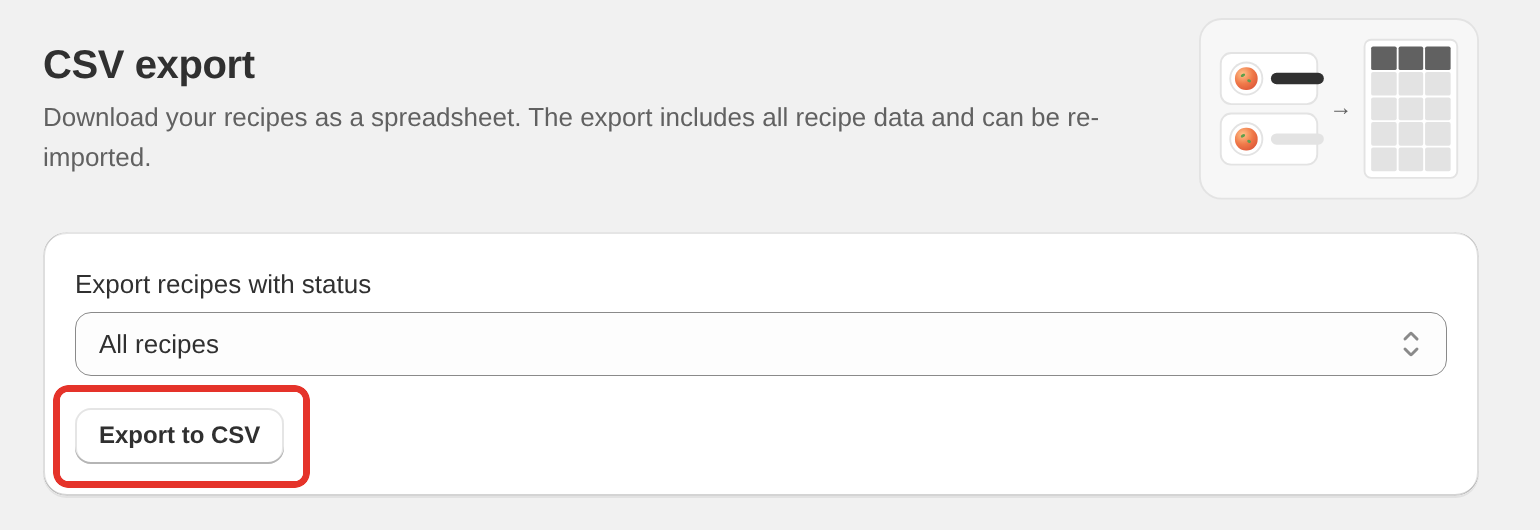
The file downloads straight away. Open it in Google Sheets, Excel, Numbers or anything else that reads CSV. In Excel, use File > Open and pick the file rather than pasting its contents, so each field lands in its own column.
What's in the file
One row per recipe, with a column for each part of the recipe:
- The recipe ID, which the import uses to match the recipe if you re-import the file
- Title, author, description, category, cuisine
- Prep time, cook time, servings, calories
- Ingredients, directions and equipment, including the products linked to ingredients and equipment
- Nutrition data with daily values and free fields, the nutrition label layout and nutrition serving size
- Recipe image, image alt text, direction step images, video
- Notes and FAQs
- Tags, custom fields, rating setting, status
- The Shopify blog and blog post each recipe is linked to
The data is readable, not raw. Ingredients and directions come out as plain lists separated by semicolons, so you can read and edit them in a spreadsheet. Star ratings and reviews aren't in the file.
Use the export to re-import
The export and the import use the same format, which makes a few things easy:
- Bulk edits. Export, find and replace across a column in your spreadsheet, then re-import with Update existing recipes ticked. To change only some fields, delete the other columns (keep
recipe_id) before you re-import. Recipes keep their current values for every column the file leaves out. - Backups. Keep a dated CSV somewhere safe.
- Moving to another store. See Transfer recipes to another Shopify store.
- Moving to another platform. Every field is in there in a format other tools can read.
Re-importing needs CSV import, which is on paid plans. See Importing recipes you already have.
Keep blog IDs safe in Excel
Shopify blog and blog post IDs are 11 to 13 digit numbers. Excel and Google Sheets can rewrite a number that long as something like 1.067E+11 when you save the file, and the real ID is lost.
The export writes those IDs in the gid://shopify/Blog/... form to stop this. It contains letters, so spreadsheets leave it alone. If you edit the blog_id and article_id columns by hand, keep the gid:// form or format the cells as Text first. Imports still accept plain numeric IDs, so older exports keep working.
Save one recipe as a PDF
To share one recipe in a readable format rather than a spreadsheet of everything, use the Print button on the recipe card on your storefront and choose to save it as a PDF.
What's next
- Bulk recipe import and export covers every column and formatting rule.
- Transfer recipes to another Shopify store covers copying recipes between stores.
- The Tools page covers the other tools next to CSV export.