
Installation guide
Getting Recipe Kit running takes about five minutes. You install the app, and Recipe Kit walks you through the rest: your first recipe, the recipe card on your theme, and a plan.
Installing Recipe Kit and adding it to your theme is free on every plan.
Install the app
- Open the Recipe Kit listing on the Shopify App Store.
- Click Add app.
- Review the permissions and click Install app.
Recipe Kit opens inside your Shopify admin and starts the guided setup.
Follow the guided setup
A bar at the top of each screen shows where you are: Welcome to Recipe Kit, Your first recipe, Setup and Plan. A Done screen comes last. If you leave partway, Recipe Kit picks up at the same step next time you open it.

-
Welcome to Recipe Kit. While you read, Recipe Kit checks your blog for recipes you have already published. Under How would you like to start?, pick a recipe it found, or choose Draft it with AI, Write it yourself or Import from a link.
-
Your first recipe. Check the recipe and click Use this recipe. To change an AI draft first, click Edit recipe. This is a short form. Notes, nutrition and the other fields are in the full recipe editor once setup is done.
-
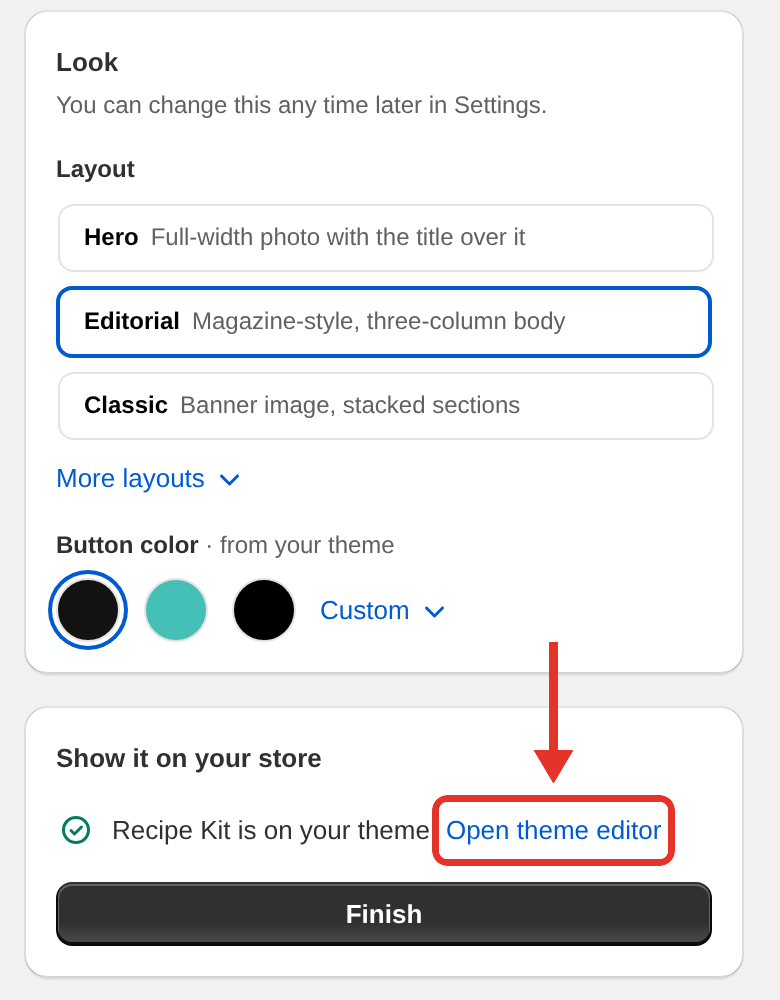
Setup. Pick a layout and a button color under Look. Then, under Show it on your store, click Open theme editor. Recipe Kit opens your theme editor with the recipe card already placed on your blog posts. Click Save in the top right of the theme editor and come back. Then click Publish recipe, or Finish if you started from a recipe on your blog. If Recipe Kit cannot see the card on your theme yet, the button reads Publish anyway or Finish anyway. You can carry on and add the card later. See Add Recipe Kit to your theme yourself below.
-
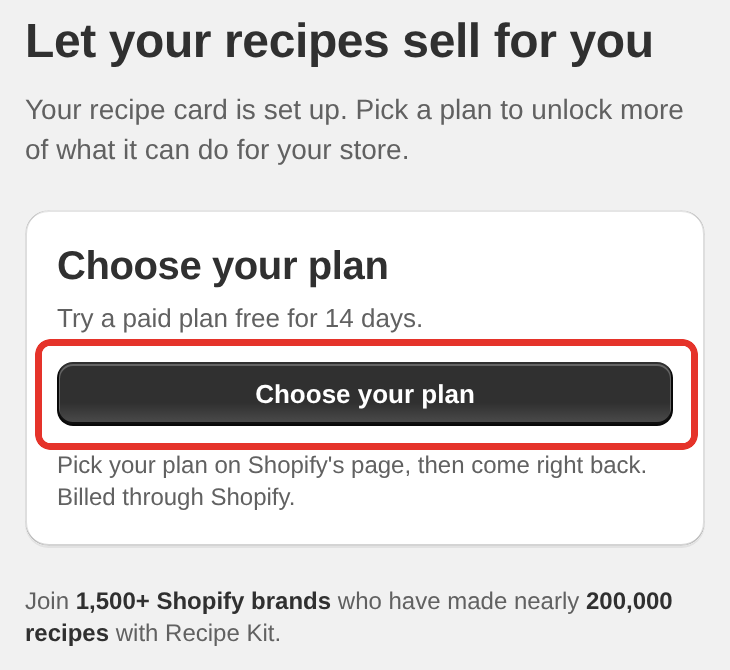
Plan. Click Choose your plan. Shopify's plan page lists every plan with current prices and trial terms, including the Free plan. Pick one, come back, and click Finish setup. You can change plans later from Settings. See Subscription plans for what each plan includes.
-
Done. Click View your recipe to see it on your store, or Go to your dashboard to open Recipe Kit.
The recipe card only shows on posts that have a recipe. Your other blog posts do not change.
Until setup is finished, Settings, Tools and Analytics take you back to setup.
Use the setup guide on Home
After setup, the top of the Recipe Kit home page shows a guide called Get the most out of Recipe Kit. It lists what is left to do:
- Add the Recipe Kit app block to your theme
- Create 3 recipes
- Attach a product to an ingredient, shown on plans that include Add to Cart, once your store has products
Below those, a few extras appear: creating 10 recipes, Add recipe filters and search to your blog, Add a Jump to Recipe button and Turn on analytics. You can Skip any extra you do not want.
Click a step to open it, then click its button. Click Hide to fold the guide to one row, and See N steps left to open it again. It goes away once every step is done.
If you left setup before the end, the guide starts with Finish setup. Click Continue setup to go back to where you stopped.

Add Recipe Kit to your theme yourself
Setup adds the recipe card to your blog posts for you. Use this section if you skipped that step, changed theme, want a recipe on another kind of page, or have an older theme.
The fastest way is from Recipe Kit itself. Open Recipe Kit and go to Settings, then click Reinstall widget at the top of the page. If Settings shows Recipe Kit is not active on your theme., click Add to theme under that message instead. Both open your theme editor with the Recipe Kit block already added. Click Save.
Online Store 2.0 themes
Most themes published since 2021 support app blocks. This is the route almost everyone should take.
- In Shopify admin, go to Online Store > Themes and click Customize.
- Pick the page you want the recipe on from the page menu at the top, usually Blog posts > Default blog post.
- In the left sidebar, under Template, click Add section and open the Apps tab. Some themes also list Recipe Kit under Add block inside the blog post section.
- Select Recipe Kit.
- Click Save.

If you see two Recipe Kit blocks. Some stores also see Recipe Kit (Classic). It is the same widget, kept under its original name so themes that already use it keep working. Either one gives you the current recipe card. If you already have Classic on your theme, leave it.
The same list holds Recipe Kit's other blocks: Recipe List, Recipe Kit Filter and Recipe Bar. They are covered in Add a recipe list to any page, Recipe filter and search bar and Jump to Recipe and Print buttons.
Choose which recipe shows
On blog posts, leave the Recipe ID blank. Recipe Kit uses the recipe linked to that post, so one block on the template covers every post.
On any other page, such as a product page, a landing page or the home page, put the recipe's Recipe ID in the block settings.
To find a recipe's ID, open the recipe in Recipe Kit and look at the page address in your browser. The ID is the number at the end. If the address ends in /recipe/768, the Recipe ID is 768.

Block settings
| Setting | What it does |
|---|---|
| Recipe ID | Which recipe to show. Leave it blank on blog posts and Recipe Kit uses the post's linked recipe |
| Custom JS | JavaScript that runs on pages with this block |
| Custom CSS | CSS applied to this block only |
Everything else is set once in Recipe Kit and applies everywhere. Open Recipe Kit and go to Settings:
- Layout picks the card design, and Accent Color sets its color.
- Features turns Card border, Click to check, Cook mode, Add to Cart and Add All to Cart on or off.
- Advanced > Widget Features holds the extras, such as the servings adjuster, the unit converter and product thumbnails.
- Translations & Labels renames any text on the card.
Customizing the recipe card covers each of these.
Vintage themes
If your theme does not support app blocks, add the Recipe Kit snippet instead. The snippet works on blog posts and on store pages that have a linked recipe. It has no Recipe ID setting, so it cannot show a chosen recipe on other pages.
Add the snippet:
- In Shopify admin, go to Online Store > Themes, click ... next to your theme and choose Edit code.
- Under Snippets, click Add a new snippet.
- Name it
recipekit-svelte. Shopify adds the.liquidending. - Copy the contents of the recipekit-svelte.liquid gist and paste them in.
- Click Save.
Render it in your blog post template, usually sections/main-article.liquid or templates/article.liquid, where you want the card to appear:
{% render 'recipekit-svelte' %}
If your theme has Custom Liquid sections, you can paste that tag into one from the theme editor instead of editing code.

Save, then reload a blog post that has a recipe linked to it.
Keep the snippet up to date. An app block updates itself. A pasted snippet is a copy from the day you pasted it, and it carries the Google Recipe schema, the FAQ schema and the card's settings. New settings and SEO fixes reach your store only when you copy the snippet again from the gist and paste it over the old one.
Add more recipes
- Open Recipe Kit and click New recipe.
- Under How would you like to start?, choose one:
- Draft it with AI writes a complete recipe for you. It is part of the Growth plan, and Free and Essentials get three free drafts every 30 days
- Write it yourself opens the editor with a blank recipe
- Import a recipe reads a recipe from a link, photo, PDF or pasted text
- Fill in the title, description, times and servings.
- Add ingredients and directions.
- Upload a recipe image, 1200 x 800 landscape.
- To give the blog post its own title, intro or image, open the Blog post tab. You can skip this.
- Click Create.
Recipe Kit makes a blog post for the recipe when you click Create. A new recipe starts with your Default Recipe Status (Settings > Advanced), Published by default, so the post goes live with the recipe card on it. Choose Hidden under Set visibility before you click Create to keep it off your store for now. See Creating recipes for the details.
Recipe Kit does not save as you type, so save before you navigate away.
Got a whole library to move across? See Bulk recipe import and export, or Tools > Import from your store to pull recipes out of blog posts you have already published.
Put a recipe on a post you already wrote
- Open Recipe Kit, click New recipe, then click Add to a post you've already written under the options. For a recipe you already made, open it instead.
- In the Connect to a blog post card, click Select blog post.
- Search for the post and select it.
- On a new recipe, fill in the recipe and click Create. On a recipe you already made, the connection saves as soon as you pick the post.
The recipe card now appears on that post. If you already started with Write it yourself, Import a recipe or Draft it with AI, choose Use a post I've already written in the Blog post card instead.
Check it worked
- Visit a blog post with a linked recipe.
- The card should appear.
- Try Print, Share and the rating stars.
Troubleshooting
The card does not appear
- The recipe must be Published, not Hidden.
- On blog posts, check the recipe's Connect to a blog post card shows the post.
- On other pages, check the Recipe ID in the block settings.
- Check the block is on the template that page actually uses.
Widget not showing works through every cause in order.
What's next
- Creating recipes covers every field in the recipe editor.
- Recipe card templates helps you pick a design.
- Linking products to recipes makes your ingredients shoppable.