
Recipe filter and search bar
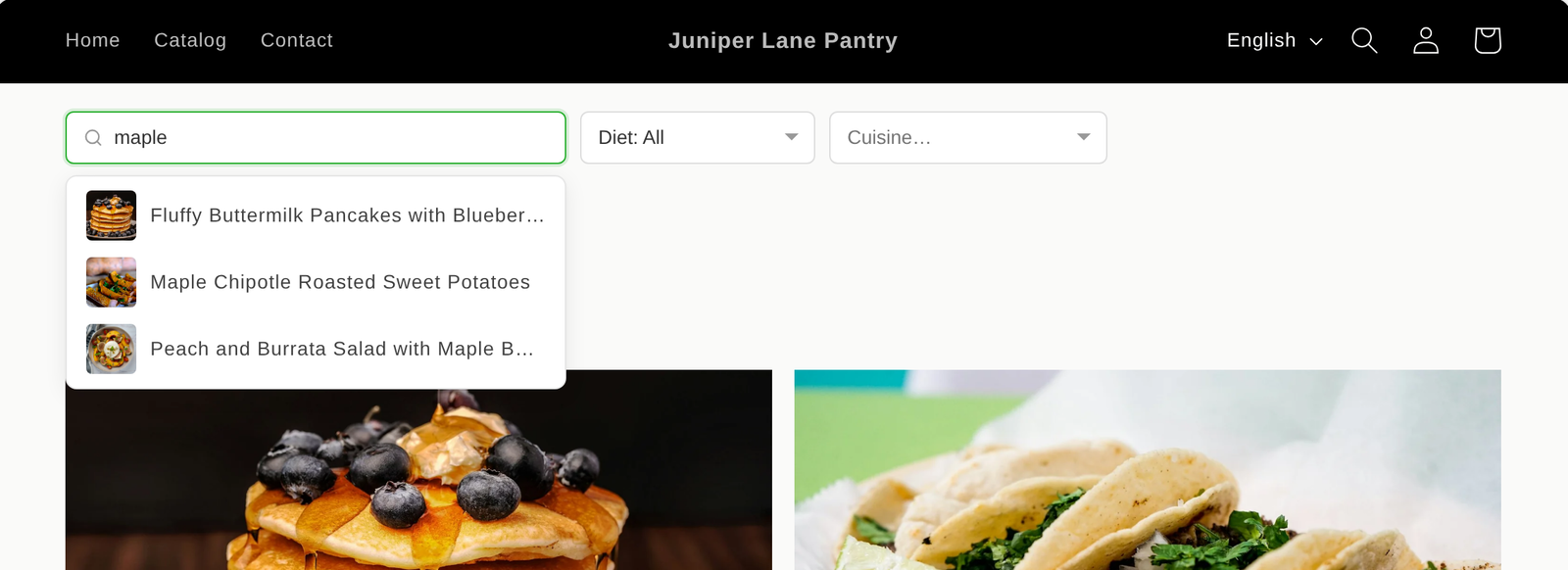
The Recipe Kit Filter adds filter menus and an optional recipe search bar to your blog page, so readers can narrow your recipes by diet, course, cuisine or any tag you use.
The filter is free on every plan. Translating it into other languages uses automatic translations, which are part of the Growth plan.
Add the filter to your blog page
The filter is a section for your theme's blog template, so it needs an Online Store 2.0 theme.
- In Shopify admin, go to Online Store > Themes and click Customize.
- Use the page menu at the top of the editor to open Blogs, then your blog template.
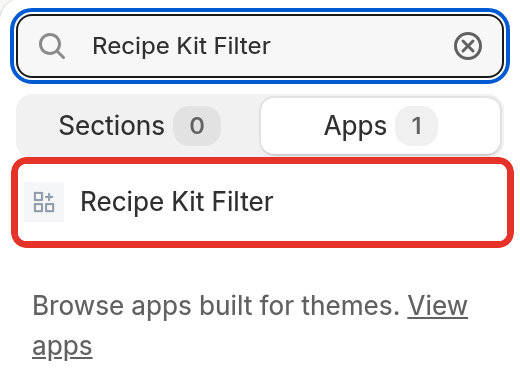
- Click Add section, open the Apps tab and choose Recipe Kit Filter.
- Drag the section to where you want it, usually near the top of the page.
- Click the Recipe Kit Filter section and set up your filters in the panel on the right. See What each setting does below.
- Click Save.
Set up your filters
You can set up to three filters, under Filter #1, Filter #2 and Filter #3. Each has three settings:
- Name. The label shown on the filter, for example "Diet" or "Cuisine".
- Tags (comma-separated). The blog post tags this filter offers. Separate them with commas or put each on its own line.
- Style. Dropdown shows a standard menu with an "All" option at the top. Searchable lets readers type to narrow a long list, which suits filters with many options such as cuisines or ingredients.
For example, a Diet filter could use these tags:
vegan, vegetarian, gluten-free, keto, dairy-free
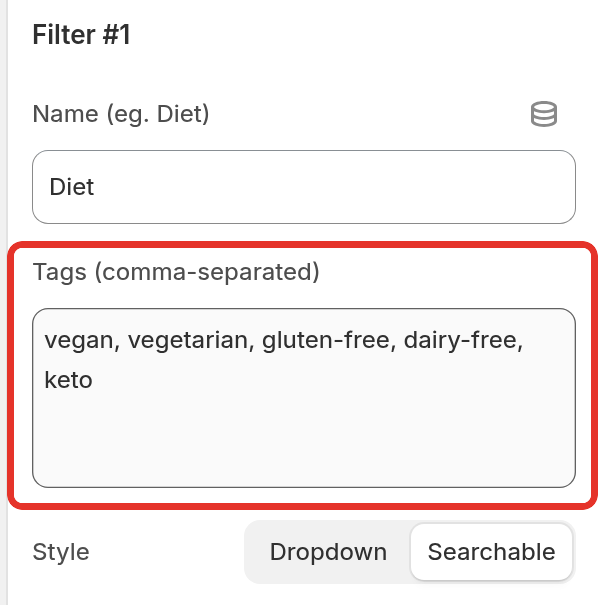
Each tag must match a tag on your blog posts. Capital letters do not matter, but spelling, spaces and hyphens do. For example, gluten free and gluten-free count as different tags when the filter checks which options have recipes. Recipe categories and filtering explains how to keep tags consistent and how to tag posts from Recipe Kit.
When a reader picks an option, the blog page reloads showing only posts with that tag.
Turn on the recipe search bar
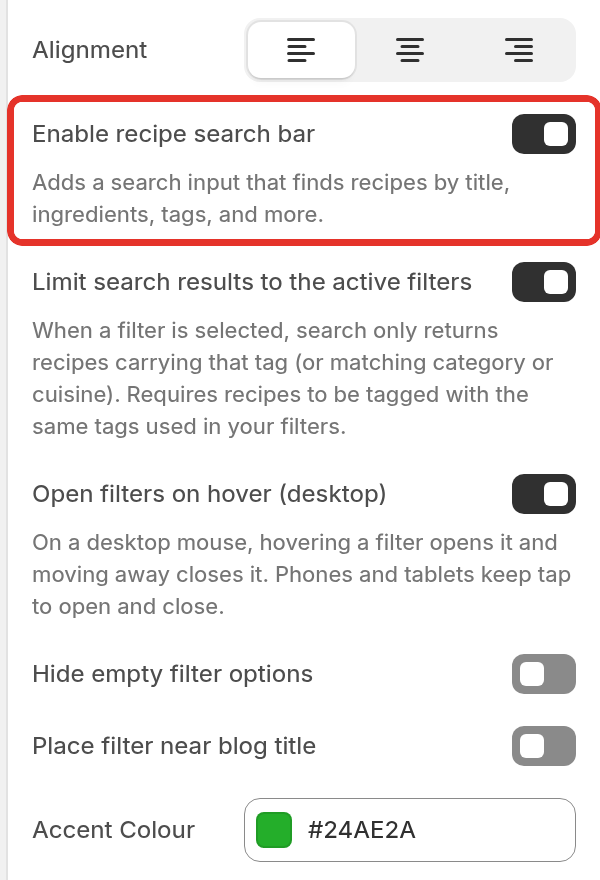
Tick Enable recipe search bar in the section settings. A search box appears beside your filters.
- Readers type at least 2 characters and results appear after a short pause.
- Each result shows the recipe's photo and title. Clicking a result, or pressing Enter, opens that recipe.
- Arrow keys move through the results and Escape closes them.
- The search looks at recipe titles, ingredients, tags and more.
To have search respect the filters, also tick Limit search results to the active filters. With a filter selected, search then only returns recipes with that tag, or with a matching category or cuisine.
What each setting does
| Setting | What it does |
|---|---|
| Alignment | Places the filters on the left, center or right of the page. |
| Enable recipe search bar | Adds the search box described above. |
| Limit search results to the active filters | Makes search return only recipes that match the selected filter. |
| Open filters on hover (desktop) | On a computer, a filter opens when the mouse moves over it and closes when it moves away. Phones and tablets still open filters with a tap. |
| Hide empty filter options | Hides tags that no post on this blog uses. On by default. |
| Place filter near blog title | Moves the filter to just below the first main heading on the page. If the page has none, the filter stays where you placed the section. |
| Accent Colour | The color for selected filters and focus outlines in the filters and search bar. |
Change the filter's wording
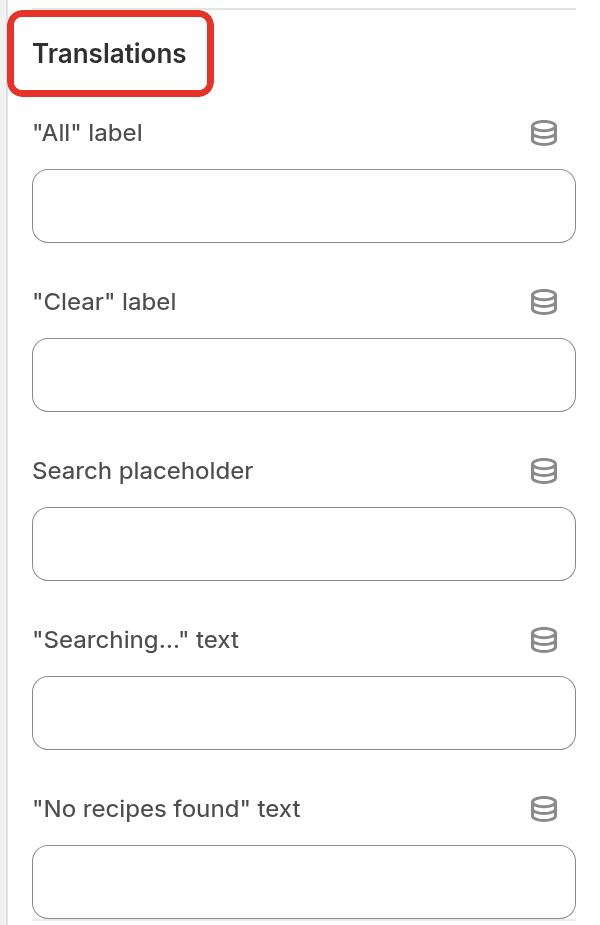
The Translations heading at the bottom of the settings holds the wording readers see. Leave a box empty to keep the default.
| Setting | Default |
|---|---|
| "All" label | All |
| "Clear" label | Clear Filters |
| Search placeholder | Search recipes… |
| "Searching…" text | Searching… |
| "No recipes found" text | No recipes found |
These boxes set the wording in your store's main language. To show the filter in other languages, see the next section.
Translate the filter into other languages
Shopify blog tags cannot be translated, so a German shopper clicking a translated option would normally land on a page with no posts. Recipe Kit keeps the translated label for display and uses your original tag for the link, so translated options still open the right posts.
Before you start, set up automatic translations and install Translate & Adapt. See Translating your recipes into other languages.
Send the filter to Translate & Adapt
Recipe Kit copies each filter section's wording to Shopify when you edit it in the theme editor. It only does this once automatic translations are turned on.
- In Shopify admin, go to Online Store > Themes and click Customize.
- Open the blog template with the Recipe Kit Filter section.
- Click the section, make any change or none, and click Save.
- Wait a few seconds. Recipe Kit sends the filter's wording to Shopify about 2 seconds after the section loads.
Do this once per filter section, and again whenever you change its tags or labels.
Translate the wording
- Open Translate & Adapt. You can also click Manage Translations in Recipe Kit Settings, under Translations & Labels.
- Choose the language.
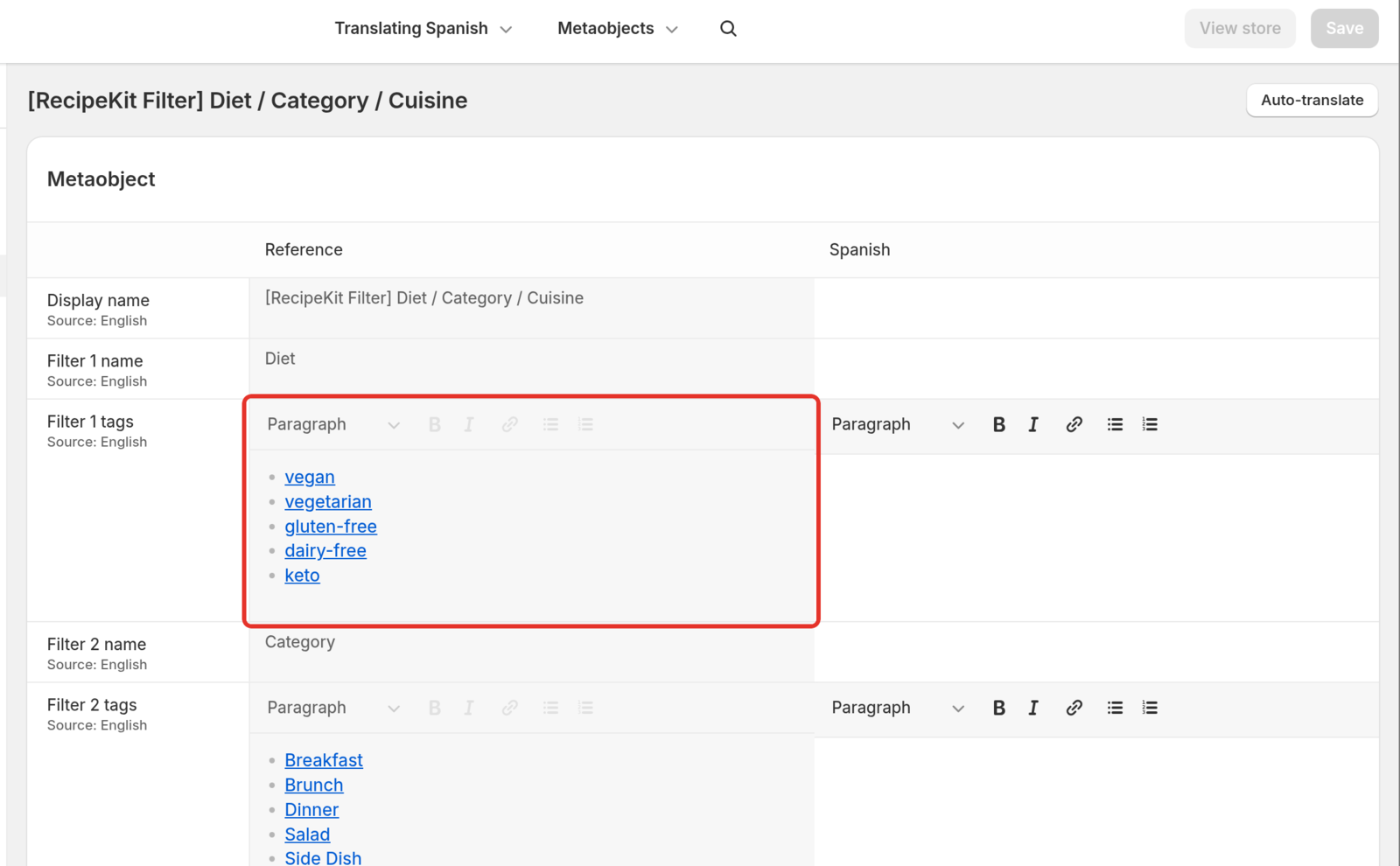
- Under Metaobjects, choose Recipe Kit Filters. Each filter section has its own entry, named
[RecipeKit Filter]followed by its filter names, for example[RecipeKit Filter] Diet / Category / Cuisine. - Click Auto-translate and then Translate, or type your own translations.
- Click Save.
![Translate & Adapt's list of metaobject entries with the [RecipeKit Filter] Diet / Category / Cuisine entry](http://d33v4339jhl8k0.cloudfront.net/docs/assets/5cd1a45a04286306738ecbaa/images/6ac3ecf409d57843060e31e7/recipe-filter-block-tanda-list.png)
You can translate the filter names, every tag option, and the five wording settings from the Translations heading.
Each tag option is stored as a link. The link text is what shoppers see, and the link address, which starts with tag:, holds your original tag. Translate only the link text. Never edit the link address. Auto-translate leaves it alone for you.
Both filter styles, Dropdown and Searchable, use the same translated tags.
When you change a filter's tags or names later, save the section in the theme editor again, then open the entry in Translate & Adapt. It highlights the fields that changed. Translate them and save, for each language.
Troubleshooting
My filter options do not show
Check that each tag in Tags (comma-separated) matches a tag on at least one post in that blog, letter for letter apart from capitals. With Hide empty filter options on, tags no post uses are hidden.
The filter is not in Translate & Adapt
- Check automatic translations are turned on in Recipe Kit Settings, under Translations & Labels.
- Open the theme editor on the blog template, click the filter section and save.
- Wait a few seconds and refresh Translate & Adapt.
A translated option opens an empty page
The link address of a tag was changed during translation. Open the filter entry in Translate & Adapt for that language, delete the translation of the affected tag field, and translate it again, changing only the link text.
A translated page shows "All" instead of the chosen option
Check the filter entry exists and is translated for that language, and that the tags in the filter section match your blog post tags in your main language.
What's next
- Recipe categories and filtering covers tagging recipes and other ways to browse them.
- Blog categories in your navigation menu covers adding tag links to your store menu.
- Keeping translations up to date covers checking translation progress and fixing sync problems.