
Recipe ingredients
The ingredient list is the part of a recipe people read most. If you sell what is on it, it is also where readers can buy from you.
Ingredients, group headings and product links work on every plan. The Add to Cart button on a linked ingredient needs the Growth plan. Compare plans on the Recipe Kit app listing.
Add ingredients
- Open the recipe in Recipe Kit.
- In the Ingredients card, click Add ingredient.
- Type the whole line the way you would write it in a cookbook.
- Press Enter to start the next row.
- Click Save.
2 cups all-purpose flour, sifted
1/2 cup butter, softened
2 cloves garlic, minced
Each ingredient is one line. There is no separate amount, unit and name to fill in, so you can write quantities however suits the recipe.
If you paste a list with one ingredient per line, each line becomes its own row.
To reorder rows, drag them. With the keyboard, use Ctrl+Up and Ctrl+Down on a row (Cmd on a Mac).
Fractions and symbols
Type 1/2 and the editor turns it into ½ as you go. The same happens for ⅓, ¼, ¾, (deg) for a degree sign and a few others. See the Recipe typography cheatsheet for the full list.
Split the list with group headings
For a recipe with parts, click Add group heading and type a heading such as "For the cake". Then add that part's ingredients below it.
For the cake
  2 cups flour
  1 cup sugar
For the frosting
  1 cup butter
  3 cups icing sugar
Headings show as headings on the card, not as ingredients. Directions and equipment have group headings too.
Link an ingredient to a product
- Open the recipe in Recipe Kit.
- Click Link product beside the ingredient.
- Search for the product and select it.
- Click Save.
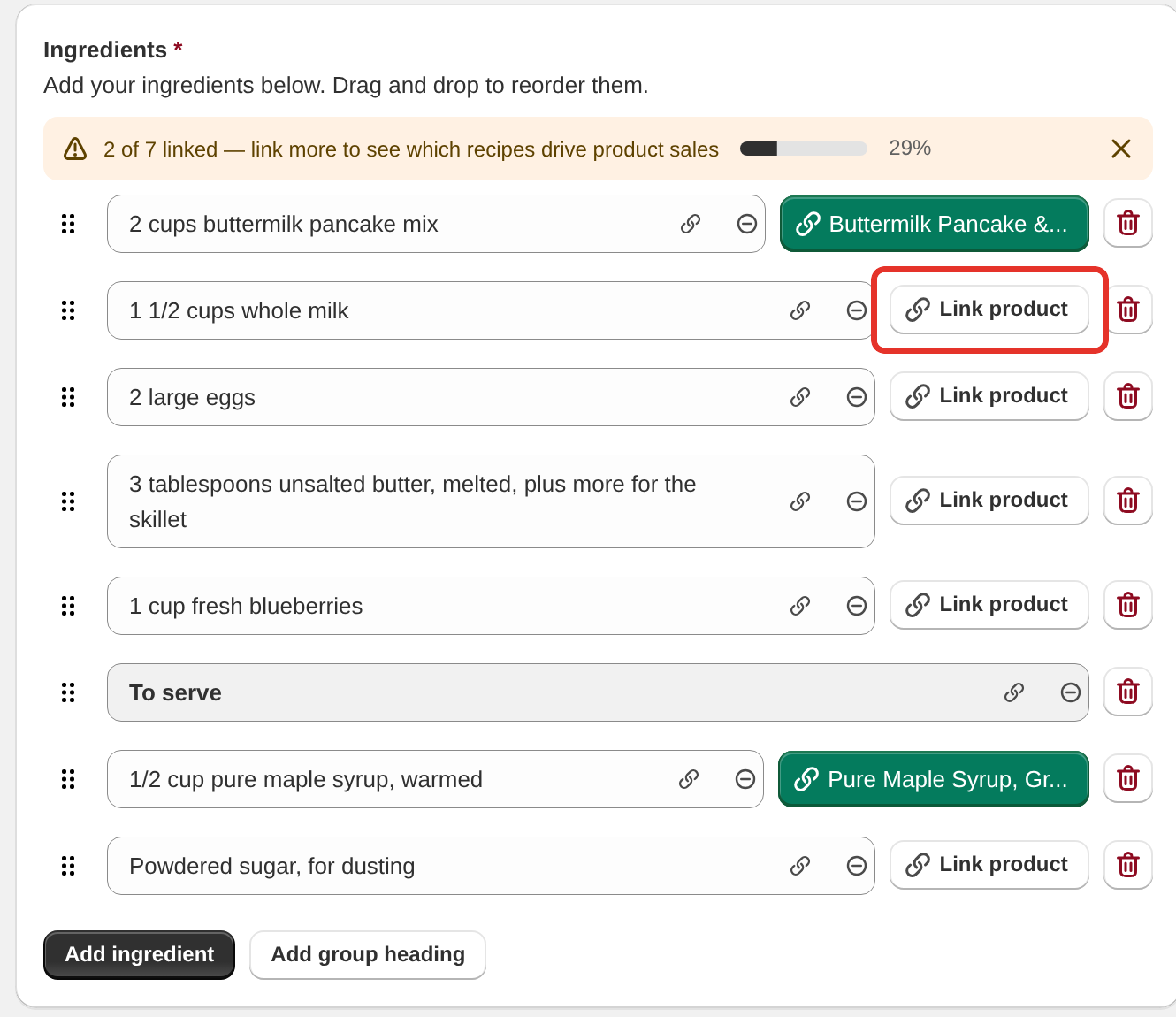
On every plan, a linked ingredient becomes a link to the product page on your recipe card. On the Growth plan it also gets an Add to Cart button, and you can add an Add All to Cart button for the whole list. See Add to cart button.
A green chip shows the product is linked. Amber means the product is not available on your online store, and red means it no longer exists in Shopify. Click a chip to unlink it. A bar at the top of the card shows how many ingredients are linked. Linking products to recipes covers all of this in detail.
To show a small product photo beside each linked ingredient, turn on Show ingredient product thumbnails in Settings > Advanced > Widget Features.
Let readers tick ingredients off
Turn on Click to check in the Features section of Settings and readers can tick ingredients off as they gather them. Ticked items show struck through. The ticks live in the reader's own browser and are not saved to your store.
Servings adjuster
When a recipe has a number in Servings, the card can show a servings adjuster. Readers halve or double the recipe and the quantities scale with it.
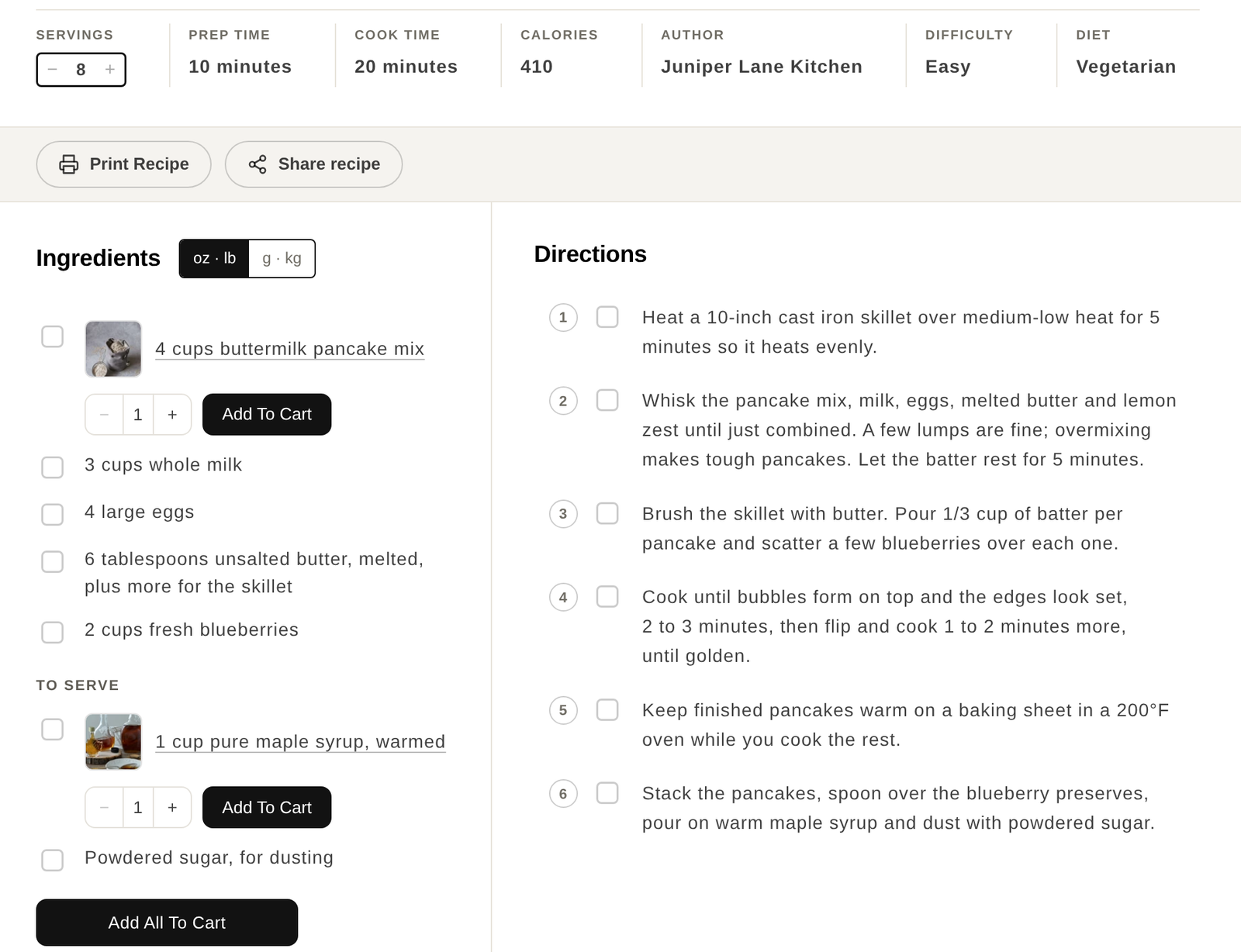
It is on by default. To turn it off, open Recipe Kit, go to Settings, open Advanced and turn off Enable servings adjuster under Widget Features.
Two more settings sit in the same place:
- Show servings above ingredients moves the servings line to just above the ingredient list.
- Enable unit converter adds a US and metric switch above the ingredients.
Show fractions or decimals
When a reader changes the servings, Recipe Kit shows the scaled amounts as fractions, like ½ or 1¾. If you write your quantities as decimals, you can keep them as decimals instead.
- Open Recipe Kit and go to Settings.
- Open the Advanced section and scroll to Widget Features.
- Turn off Show quantities as fractions.
- Click Save.

Show quantities as fractions is on by default. With it off, scaled amounts show as decimals such as 0.5 and 1.75, rounded to two decimal places.
The setting only changes amounts the servings adjuster has scaled. At the recipe's own serving size, each line shows exactly as you typed it.
Widget Features only work on the new Recipe Kit widget. If your store still uses the original widget, see Upgrading to the new Recipe Kit widget.
Writing a list people can shop from
Be exact. "1 large onion", not "onion". Write "1 cup (200g) sugar" if your readers use both systems.
Put the prep in the line. "1/2 cup butter, softened" saves a reader finding out at step four that it needed to come out of the fridge.
List them in the order they are used. It matches the way people cook.
Link everything you sell, or nothing. A recipe with two of eight ingredients linked looks unfinished.
What's next
- Linking products to recipes covers product links, chips and variants in depth.
- The Tools page covers renaming an ingredient or changing its product link in every recipe at once.
- Add to cart button covers the cart buttons on your recipe card.
- Recipe equipment covers the other list you can link to products.