
Add to cart button
Add to Cart puts a buy button beside each ingredient you sell, so a reader can fill their cart without leaving the recipe.
The Add to Cart and Add All to Cart buttons are part of the Growth plan. Linking ingredients to products works on every plan. Compare plans on the Recipe Kit app listing.
How it works
Each ingredient you link to a product gets an Add To Cart button on the recipe card. The reader clicks it, the product goes into their Shopify cart, and your theme's cart updates. Ingredients you have not linked show as plain text.
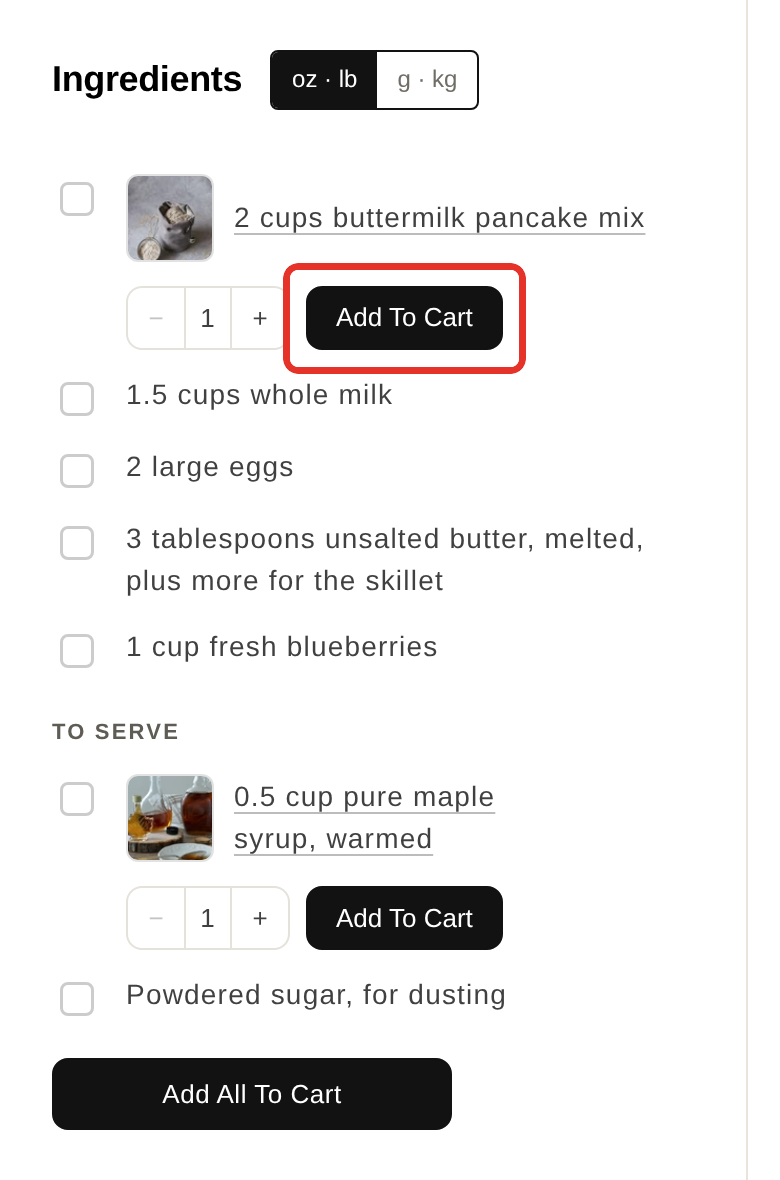
On Free and Essentials, a linked ingredient becomes a link to the product's page instead of a cart button.
| Feature | Free | Essentials | Growth | Enterprise |
|---|---|---|---|---|
| Link ingredients to products | Yes | Yes | Yes | Yes |
| Add to Cart button | No | No | Yes | Yes |
| Add All to Cart | No | No | Yes | Yes |
| Quantity selector | No | No | Yes | Yes |
Turn on Add to Cart
- Open Recipe Kit and go to Settings.
- In the design card at the top, find Features.
- Switch on Add to Cart. To add one button that puts every linked ingredient in the cart at once, also switch on Add All to Cart.
- Click Save.
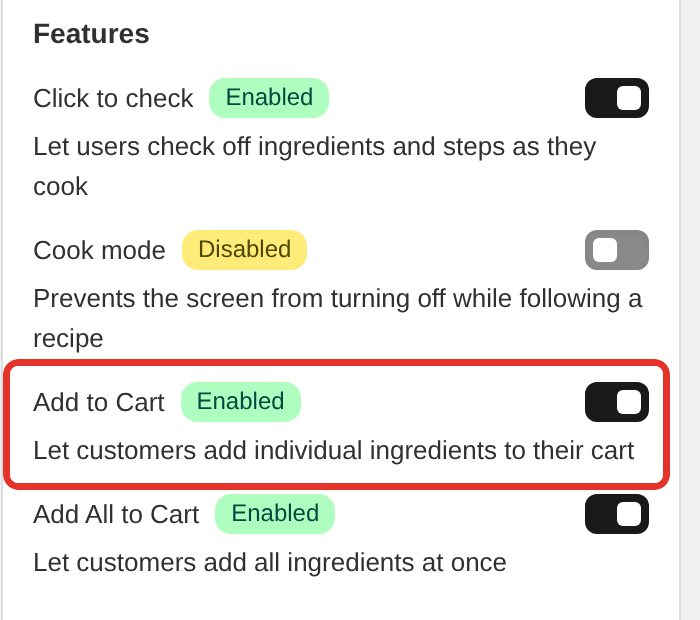
New stores that finish setup on the Growth plan have Add to Cart switched on for them.
Then link ingredients to products in each recipe. Linking products to recipes has the steps.
Show a quantity selector and product photos
Two more options sit under Widget Features in the Advanced section of Settings:
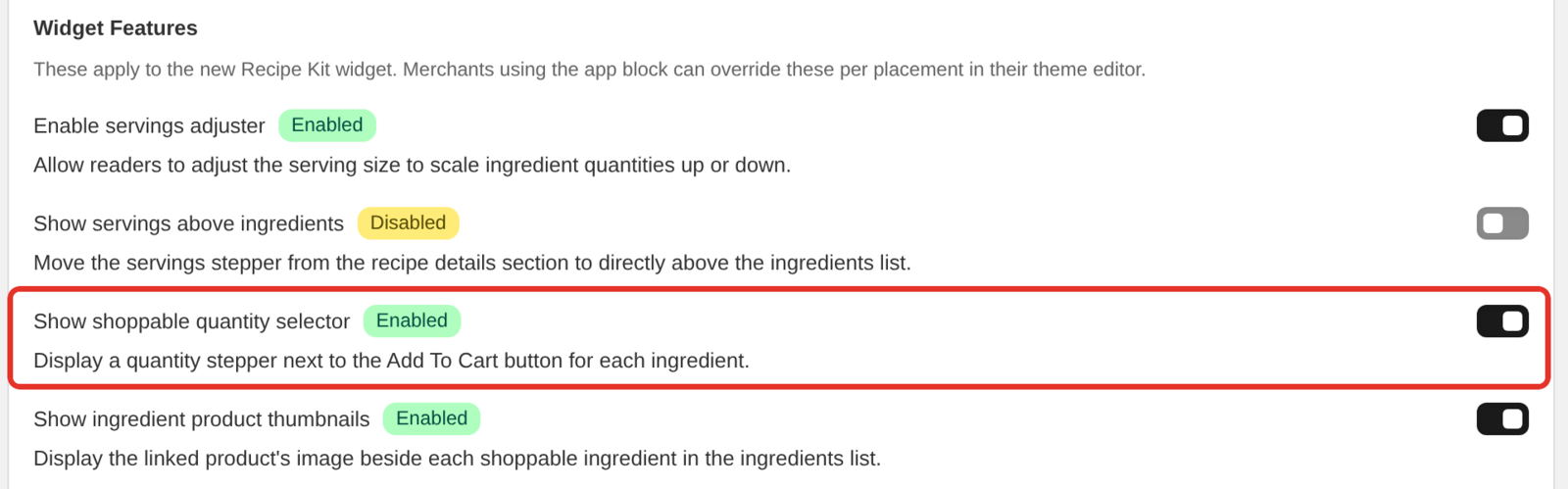
- Show shoppable quantity selector adds a plus and minus stepper beside each Add To Cart button, so a reader can add two bags of flour instead of one.
- Show ingredient product thumbnails shows the linked product's photo beside each ingredient.
Both are on for stores that finished setup recently. Older stores may need to switch them on:
- Open Recipe Kit and go to Settings.
- Click Advanced to expand it.
- Under Widget Features, switch on Show shoppable quantity selector, Show ingredient product thumbnails, or both.
- Click Save.
Once an item is in the cart, its button changes to a remove control showing how many are in the cart.
Product variants
When you link a product, Shopify's product picker lets you choose which of its variants to offer. On the recipe card, the reader sees a menu of those variants and can pick one. Only variants in stock appear, so a sold-out product cannot be added from a recipe. Stock is checked each time the card loads.
Add All to Cart adds the first in-stock variant of each linked product.
Change the button text
Rename or translate every cart label in Settings, under Translations & Labels > Customize labels. The cart labels are:
- Add To Cart
- Add All To Cart Text
- Remove Quantity in Cart
- View Cart
- Checkout
- Added
- Removed
See Changing the text on your recipe card.
Style the buttons
The buttons use the accent color you chose in Settings, so changing that color is the simplest way to restyle them. For more control, add CSS in the Custom CSS box at the bottom of the Settings design card. The widget's own button colors use !important, so yours need it too:
#rk_parent .rk_container .rk_atc_btn,
#rk_parent .rk_container .rk_atc_all {
  background: #228b22 !important;
  border-color: #228b22 !important;
  font-weight: 700;
}

/* The remove button shown once an item is in the cart */
#rk_parent .rk_container .rk_rfc_btn {
  border-radius: 0;
}
This applies to the current Recipe Kit widget.
Custom CSS styling explains where CSS goes and how to target the card.
Measure it
The Analytics dashboard counts Add to Cart clicks per recipe. On Growth it also ties completed orders back to the recipe that started them. See Analytics dashboard.
Troubleshooting
No button shows at all
Check each of these:
- Your store is on the Growth or Enterprise plan. On other plans the Add to Cart switch in Settings shows a Growth badge and an Upgrade button.
- Add to Cart is on in Settings.
- The ingredient is linked to a product.
- The product is active, published to the Online Store sales channel, and has at least one variant in stock.
The button adds the wrong product
Open the recipe and check which product the ingredient is linked to. Similar product names are easy to mix up. Unlink it and link the right one.
The cart icon in my theme does not update
Most themes update on their own. Recipe Kit refreshes the cart drawer and cart count in Dawn, Horizon and themes built on them, and tries a general refresh in other themes. If your theme still shows the old count after an add, a developer can hook into the rk_cart_event that Recipe Kit fires after every cart change. See JavaScript events.
The automatic refresh is part of the Recipe Kit app block. If your store still uses an older, hand-pasted Recipe Kit snippet, only the event fires. Upgrading to the new Recipe Kit widget explains how to switch.
If you are stuck, contact support with your store URL and theme name.
What's next
- Linking products to recipes covers linking, variants and fixing broken links.
- JavaScript events lists the cart, rating, share and print events for developers.
- Changing the text on your recipe card covers renaming the cart buttons.