
Transfer recipes to another Shopify store
If you run more than one Shopify store and want the same recipes on each, Recipe Kit's CSV export and import will copy them across.
Export works on every plan. The store you import into needs a paid plan, or has to be a development store, because CSV import isn't on Free. Compare plans on the Recipe Kit app listing.
Copy your recipes
-
On the source store, open Recipe Kit and go to Tools > CSV export.
-
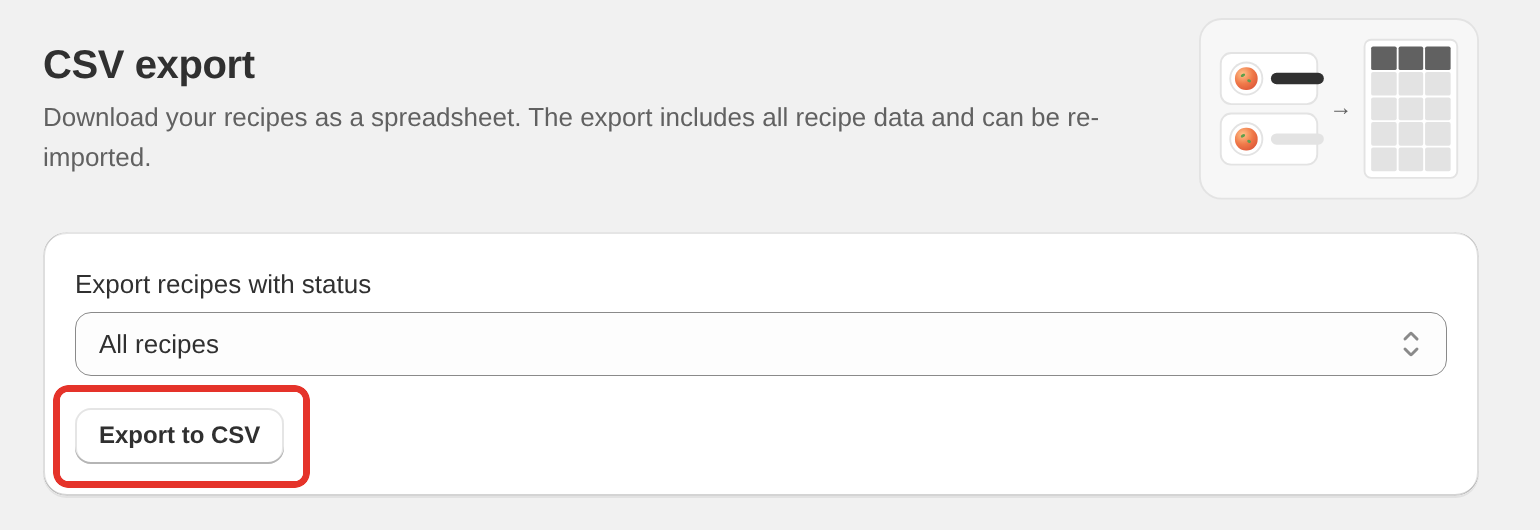
Choose All recipes and click Export to CSV.
-
Open the file and clear the
blog_idandarticle_idcolumns. -
On the destination store, open Recipe Kit and go to Tools > CSV import, then upload the file.
Every recipe arrives with its ingredients, directions, equipment, nutrition, times, notes, tags, custom fields and images.
Why you clear the blog and post columns
blog_id and article_id point at a blog and a blog post on the store the file came from. Those IDs mean nothing on the destination store, and Shopify rejects them.
Once the columns are clear, you have two options:
- Leave both empty. The recipes import into Recipe Kit without a blog post. Link each one later: open the recipe in Recipe Kit and use the Connect to a blog post card, which shows a Not connected badge until you do.
- Fill
blog_idwith a blog on the destination store and tick Create blog posts during the import. Recipe Kit creates a new post for each recipe and links them as it goes. This is slower, because Shopify limits how fast posts can be created, but it saves linking them by hand.
To find a blog ID on the destination store, go to Online Store > Blog posts in Shopify admin, click Manage blogs, open the blog, and copy the number from the end of the address in your browser.
What happens to images
Recipe images already on Shopify's CDN are carried across as they are. They aren't re-uploaded.
So the destination store's recipes use image files hosted on the source store. They display fine, because Shopify's CDN is public, but they aren't the destination store's own files. If you close the source store or delete the images from it, they break on the destination store too.
If you want each store to own its images, host them somewhere else first (any public URL works), put those URLs in the recipe_image column, and import. Recipe Kit downloads any image that isn't already on Shopify's CDN and uploads it to the destination store.
Keep the stores in step
The CSV route is a copy, not a live sync. Edit a recipe on one store and the other doesn't change.
To push changes later, export from the source store again and re-import on the destination with Update existing recipes ticked. Recipe IDs differ between stores, so the import matches each row to the destination's recipe by title and updates it in place instead of creating a duplicate. Don't rename a recipe on only one store, or the two stop matching.
Dead Simple Blog Sync no longer carries recipes
We used to recommend pairing Recipe Kit with the Dead Simple Blog Sync app, which had a direct hook into Recipe Kit that copied recipe data along with the blog post.
That hook no longer works. Dead Simple Blog Sync still copies blog posts between stores, but the recipe doesn't come with them. If you use it, the post arrives on the other store without a recipe card. Bring the recipes over with the CSV method above and link them to the synced posts.
Need a hand?
If you have a lot of recipes or a more complicated setup, contact support with both store URLs and we'll run the transfer for you.
What's next
- Exporting recipes from your store covers what the export contains.
- Bulk recipe import and export covers every CSV column and formatting rule.
- Linking blog posts to recipes covers connecting imported recipes to posts.