
Text looks weird or has odd formatting
Text pasted from another website, an app or a document such as Microsoft Word can bring hidden formatting with it. This page shows how to clean it up.
Common signs:
- Extra blank lines or spacing
- Text in a different font, size or color
- Odd characters or bits of code
- One pasted line split into several rows
Paste as plain text
Plain text pasting drops the formatting and keeps only the words.
- Open the recipe in Recipe Kit.
- Delete the badly formatted text from the field.
- Copy the text again from where it came from.
- Click back in the field and paste with Ctrl+Shift+V on Windows, or Cmd+Shift+V on a Mac. In Safari, use Cmd+Option+Shift+V.
- Click Save.
Clear the formatting from a row
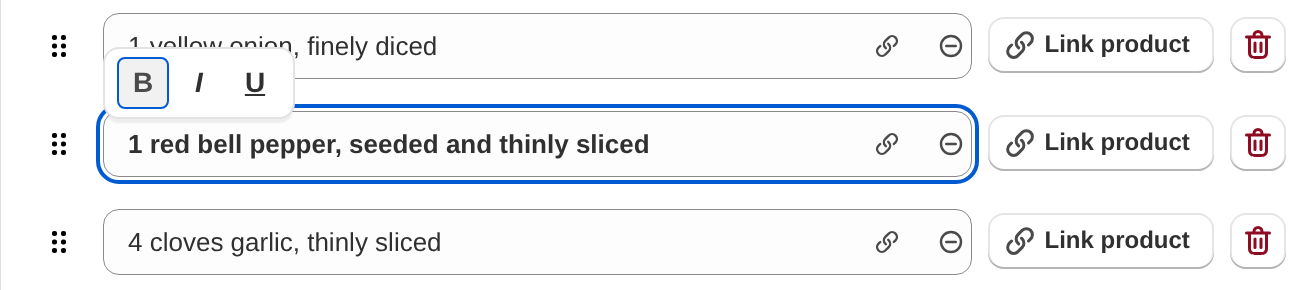
Ingredients, directions and equipment rows only keep bold, italic, underline and links. Colors and fonts cannot survive there.
- Open the recipe in Recipe Kit and find the row.
- Click the circle with a minus sign at the right end of the row, next to the link icon. It shows Clear all formatting when you hover over it, and removes bold, italic, underline and links from that row.
- Click Save.
See the hidden formatting in the description and notes
Description and Notes accept more formatting than the rows, such as headings, lists and tables. That also means more pasted formatting can hide there.
- Open the recipe in Recipe Kit.
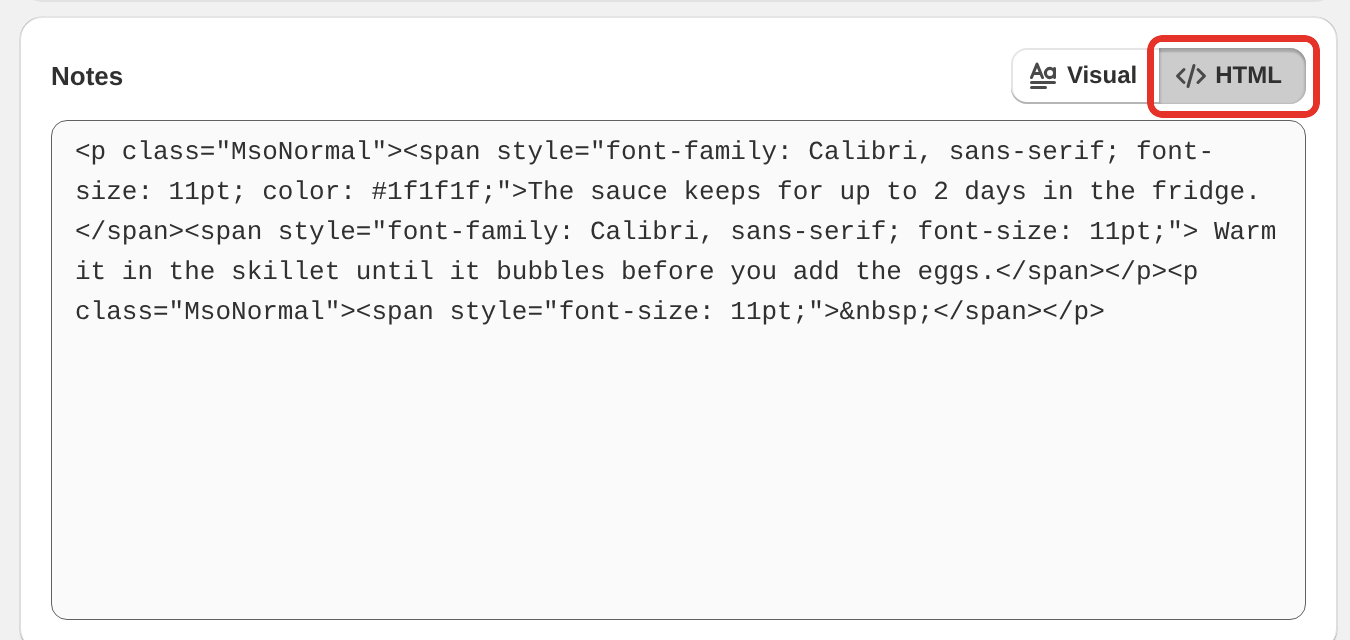
- Click HTML above the Description or in the Notes card. You now see the raw markup.
- Delete anything you do not want, such as
<span style="...">tags or empty<p></p>lines. - Click Visual to go back, then click Save.
You can also select text in the Visual view and click Clear formatting in the toolbar.
Why one line turned into several rows
When you paste text with several lines into an ingredient, direction or equipment row, Recipe Kit makes one row per line. That saves time when you paste a whole list. If it split something you wanted as one row, delete the extra rows and type or paste the text as a single line.
Symbols that change as you type
The editor turns some shorthand into proper characters as you type, such as 1/2 into ½. See the Recipe typography cheatsheet for the full list and how to undo a swap.
Still looks wrong
If the text looks right in the editor but wrong on your store, your theme or Recipe Kit's code may need updating. See Recipe card has a bug or looks odd?. If that does not fix it, contact support with a link to the blog post.
What's next
- Recipe typography cheatsheet covers the characters the editor swaps as you type.
- Recipe ingredients covers how ingredient rows work.
- Contact support covers how to reach the Recipe Kit team.