
Email capture gate
The email capture gate turns recipe readers into email subscribers. It blurs a recipe's directions behind a short signup form, and a reader who enters their email address sees the directions straight away. Each signup lands in Shopify as a customer who has agreed to email marketing, so your email platform picks it up from there.
The email capture gate is part of the Growth plan. On other plans its switch is locked, with an Upgrade button beside it. Compare plans on the Recipe Kit app listing. If your store moves to a plan without it, the gate turns off on your recipes.
Recipe Kit never emails your readers. You decide what to send them, from Shopify Email or any email platform that syncs your Shopify customers.
Turn on the gate
- Open Recipe Kit and go to Settings.
- Select Advanced to expand it, then scroll to Email capture gate.
- Turn on Enable email capture gate.

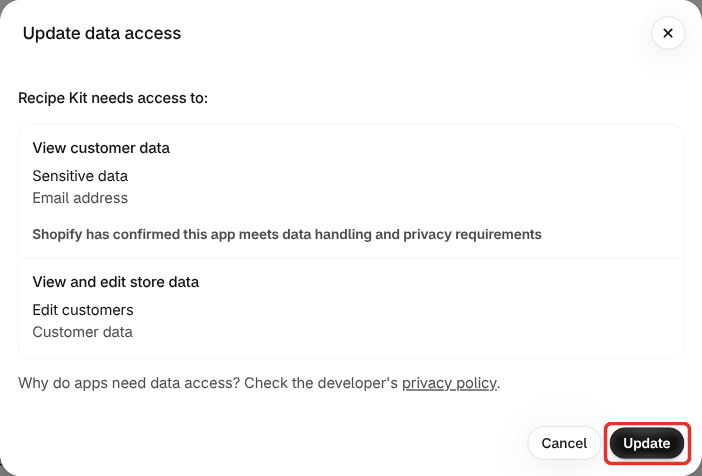
- Shopify asks you to give Recipe Kit access to customer data. Select Update.
- Select Save.
Recipe Kit needs this permission to create a customer for each signup. It uses a reader's address to check whether they're already your customer, and reads addresses back from Shopify only when you export. If you select Cancel, the gate stays off and a message explains why. Turn the switch on again to see the request again.
The gate works on the new Recipe Kit widget. If your store still uses the original pasted-in widget, turning it on asks you to upgrade first.
What readers see
The directions on each recipe card are blurred, with the signup form on top. The ingredients, the photo and the rest of the card stay readable.
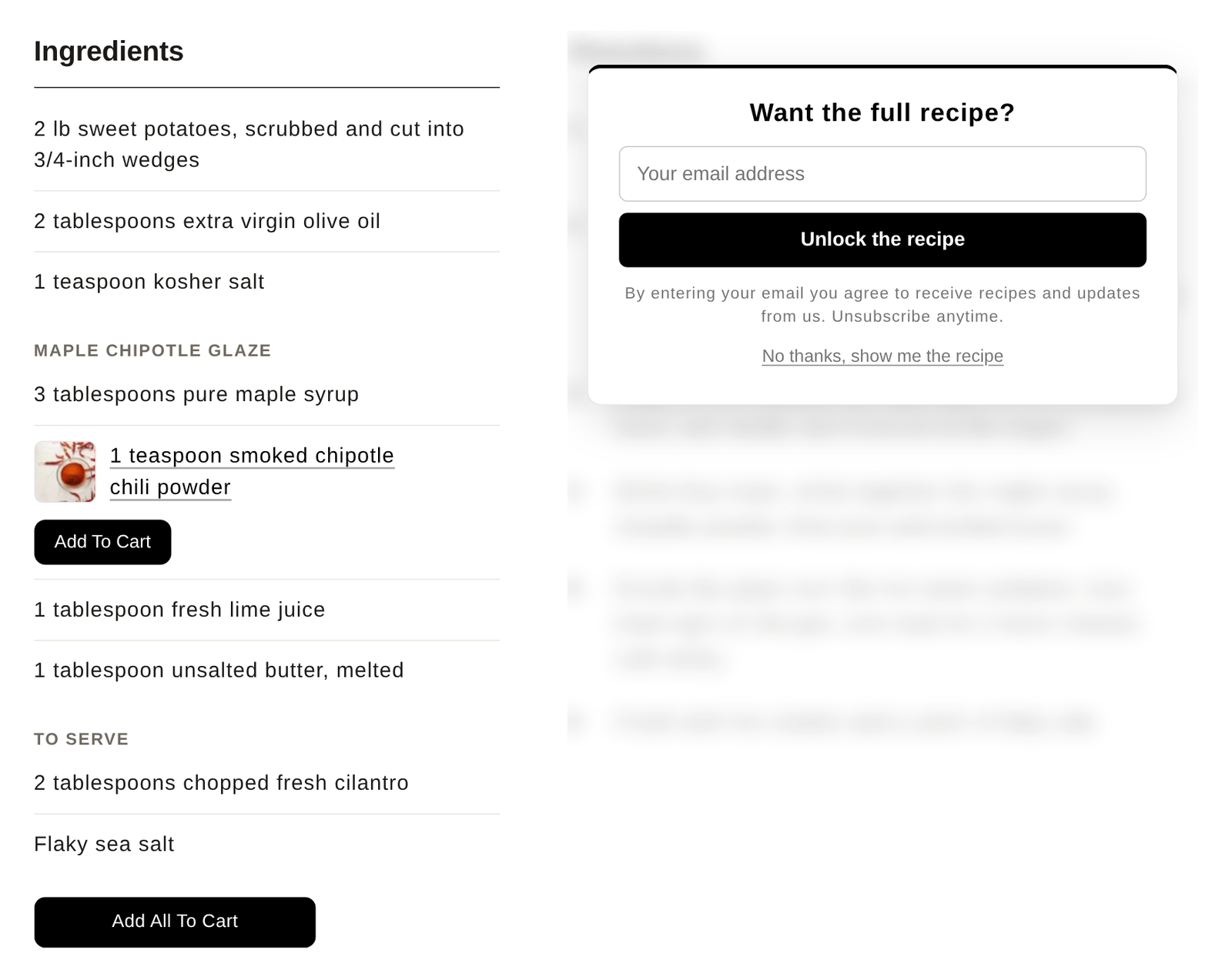
- Entering an email address shows your success message, then the directions.
- No thanks, show me the recipe shows the directions without signing up.
- Either way, the reader's browser remembers, so they don't see the gate again on any recipe in your store.
Search engines still see the whole recipe. The directions stay in the page and in the recipe schema, so Google reads every step as before.
The gate covers the directions on the recipe card only. The recipe video, the recipe notes and the print page show in full.
Where signups go
Each signup becomes a customer under Customers in your Shopify admin, subscribed to email marketing and tagged recipe-optin and recipekit .
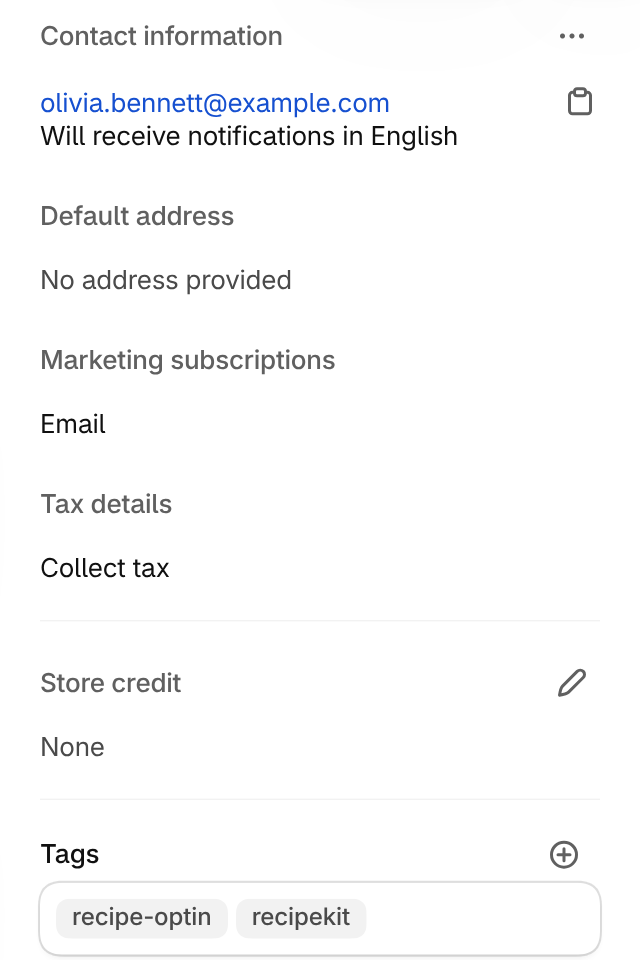
If the reader is already your customer, they get the two tags. If they weren't subscribed to email marketing, the signup subscribes them. If they were already subscribed, or still confirming a subscription, nothing else changes.
To welcome new subscribers, build a segment or an automation in your email platform on the recipe-optin tag.
Change the text readers see
Once the gate is on, five fields under it set the words on the form. Leave a field empty to keep its default, then select Save.

| Field | Default |
|---|---|
| Gate heading | Want the full recipe? |
| Button label | Unlock the recipe |
| Consent line | By entering your email you agree to receive recipes and updates from us. Unsubscribe anytime. |
| Skip link text | No thanks, show me the recipe |
| Success message | Thanks! Unlocking the recipe… |
The consent line is what readers agree to, so keep it true to what you'll send them. The form shows the same text in every language your store offers.
Make signing up required
Turn off Allow readers to skip to remove the skip link. Readers then have to sign up to see the directions.

We recommend leaving it on. A required signup turns some readers away before they ever cook from your recipe. If a signup fails on your store's side, for example after the customer permission is removed, the skip link shows anyway, so readers are never locked out of a recipe.
See and export signups
- Open Recipe Kit and go to Tools.
- Under Import & export, select Email signups. You can also select View email signups under the gate settings.
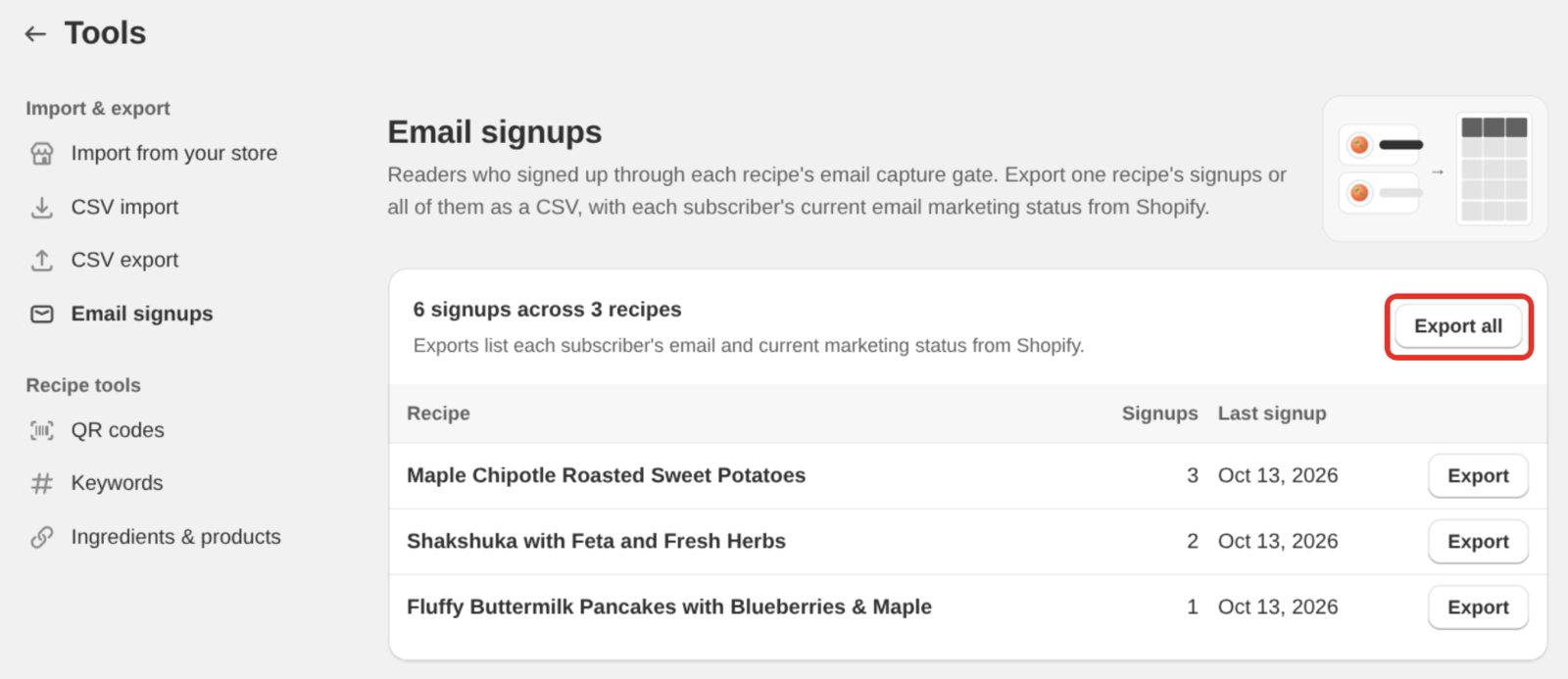
The table shows how many readers signed up on each recipe and when the last one did. Select Export all for every signup, or Export on a recipe's row for that recipe only.
The CSV file has the columns Email, Email marketing, Recipe, Recipe ID and Signed up (UTC). Recipe Kit reads each address and its marketing status from Shopify when you export, so a reader who has since unsubscribed shows as Unsubscribed. Customers you delete in Shopify drop out of the list.
Privacy
Recipe Kit doesn't store your readers' email addresses. For each signup it keeps the Shopify customer ID, the recipe and the date, which is what the counts and exports read. These records are deleted when you delete the recipe, when a reader asks your store to erase their data, and 48 hours after you uninstall Recipe Kit. The Recipe Kit privacy policy has the details.
What's next
- Subscription plans covers what else comes with Growth.
- The Tools page covers the other tools next to Email signups.
- Customizing the recipe card covers the other switches under Advanced.