
Move the recipe card on your blog post
The recipe card shows wherever the Recipe Kit block sits on your blog post template, which on most themes is below the post. You can move it above or below other parts of the page, inside the post's text area, or part way through the text.
Moving the card is free on every plan.
Move the block in the theme editor
On most themes this needs no code:
- In Shopify admin, go to Online Store > Themes and click Customize.
- From the page menu at the top, choose Blog posts > Default blog post.
- In the list on the left, drag the Recipe Kit block up or down.
- Click Save.
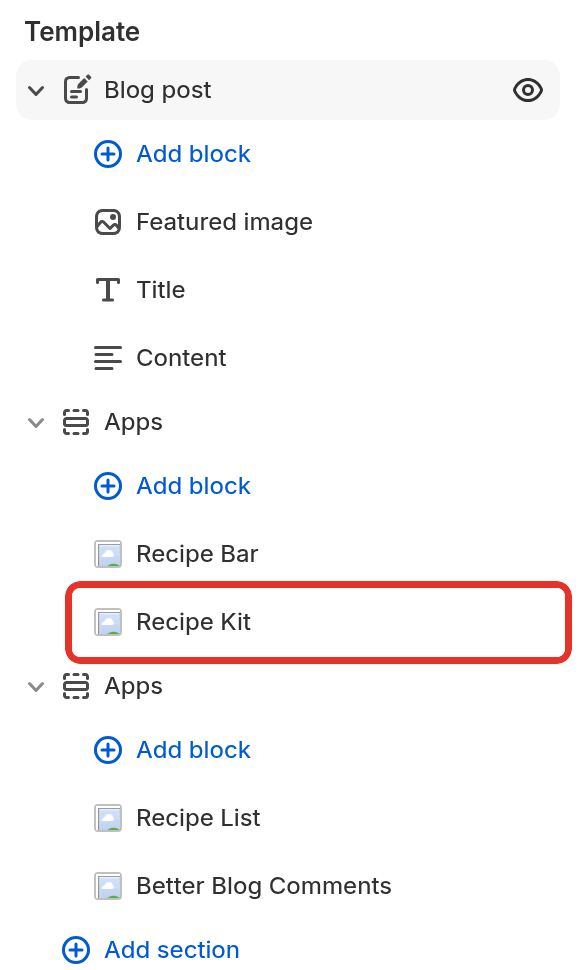
The apps list has two Recipe Kit blocks: Recipe Kit and Recipe Kit (Classic). Both show the same current card. Older installs often have Recipe Kit (Classic) on the template, and that is fine to keep. Use one block per template, not both, or the card shows twice.
Put the card inside the post text area
Some themes place app blocks in a separate section, away from the post, so dragging cannot get the card next to your writing. Recipe Kit can move it for you:
- Open Recipe Kit and go to Settings.
- Click Advanced to expand it.
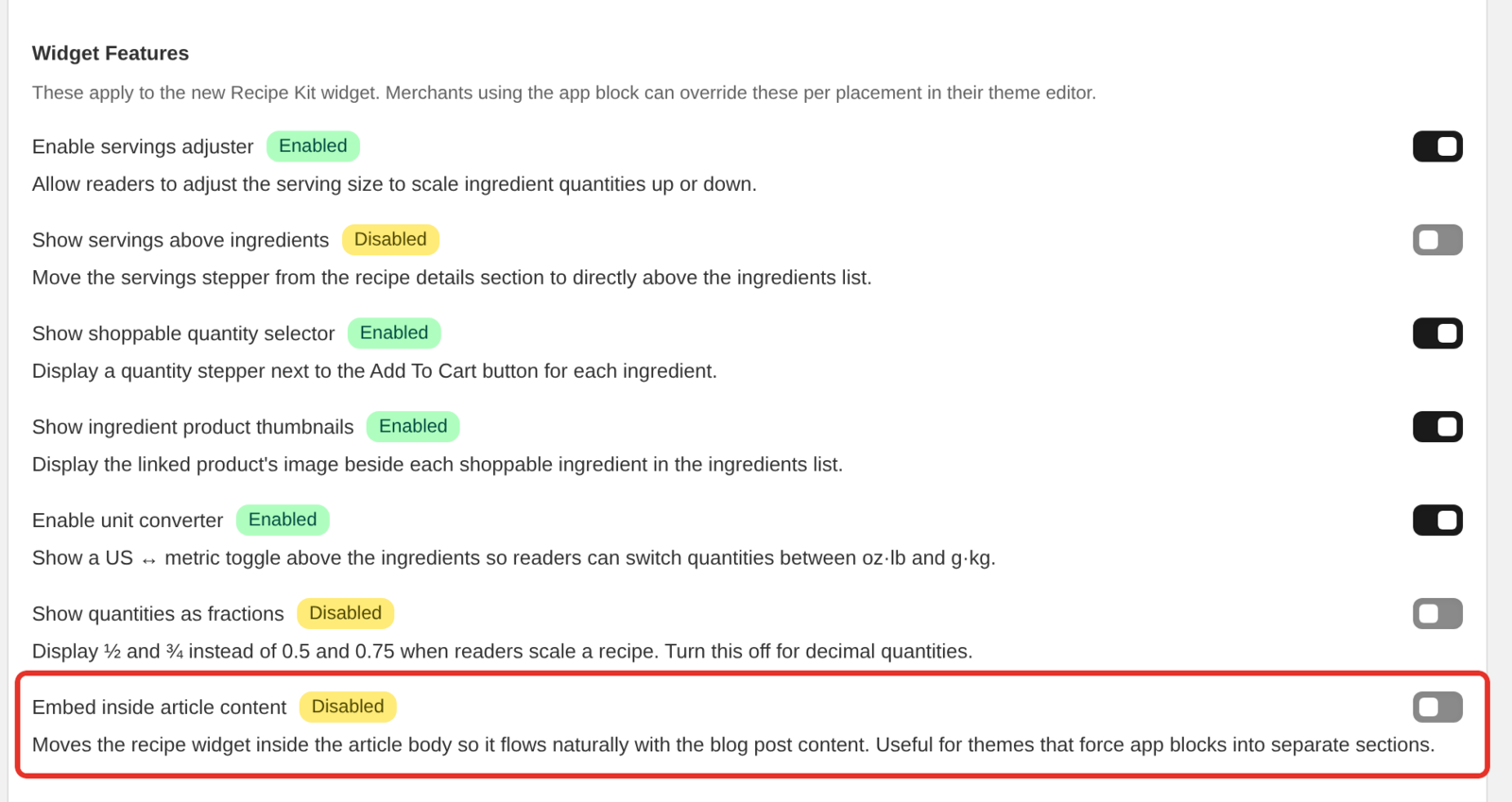
- Under Widget Features, switch on Embed inside article content.
- Click Save.
The card then sits at the end of the post's text, inside the same column. If Recipe Kit cannot find your theme's post text area, the card stays where the block put it. This setting works with the app block install.
Put the card part way through the post
To place the card at a chosen point inside your writing, you type a placeholder into the post and add a small theme edit that swaps the placeholder for the card. This is a code change. If you would rather we did it, contact support with your store URL.
Before you start:
- This method uses the Recipe Kit snippet,
recipekit-svelte. Theme code cannot place the app block, so if you installed with the app block, add the snippet first, following the snippet steps in the Installation guide. - Remove the Recipe Kit block from the blog post template in the theme editor. Otherwise the block and the snippet both show the card.
Edit your blog post template
- In Shopify admin, go to Online Store > Themes, click the three dots next to Customize, and choose Edit code.
- Open your blog post template, usually
sections/main-article.liquid, ortemplates/article.liquidon older themes. - Find the line that outputs the post body,
{{ article.content }}, and replace it with the code below. - Click Save.
{% if article.content contains ':recipekit:' %}
  {% capture recipekit_card %}{% render 'recipekit-svelte' %}{% endcapture %}
  {{ article.content | replace: ':recipekit:', recipekit_card }}
{% else %}
  {{ article.content }}
  {% render 'recipekit-svelte' %}
{% endif %}
This looks for :recipekit: in the post. Where it finds it, the card goes in its place. On posts without the placeholder, the card goes straight after the post text, so your other posts keep working.
If you already render the snippet elsewhere in the same template, remove that line, or posts will show the card twice.
Add the placeholder to a post
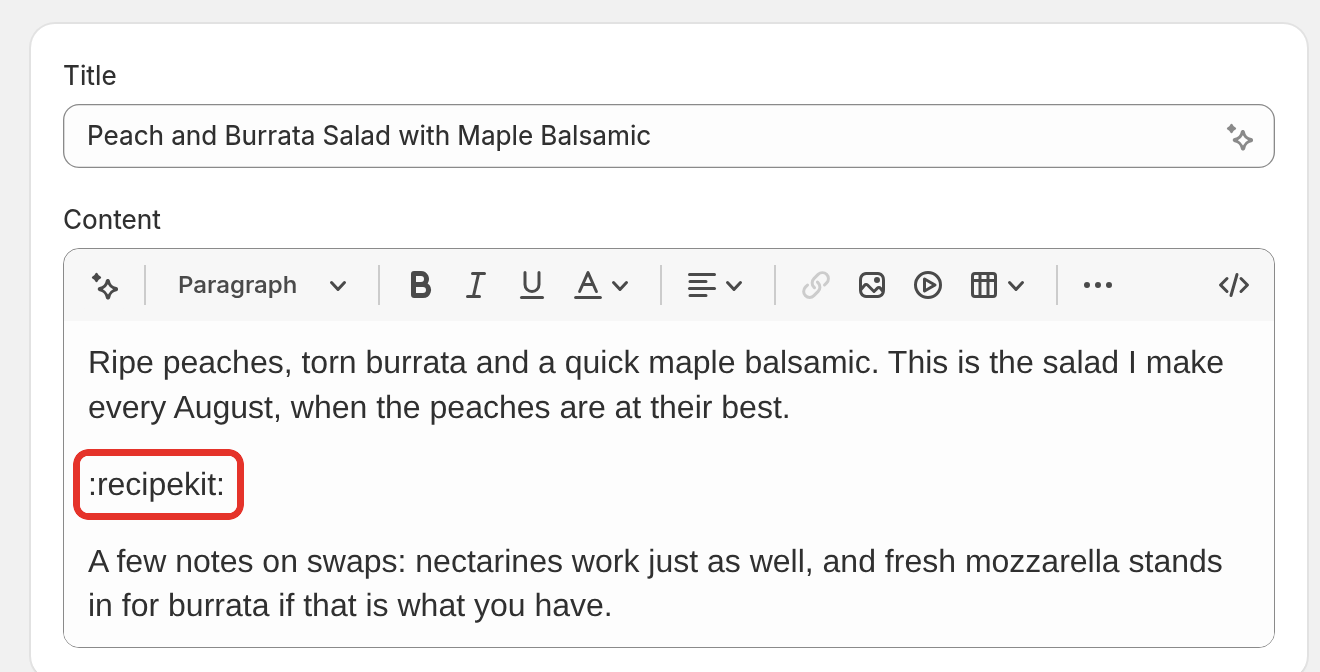
Edit a blog post in Shopify and type :recipekit: on its own line wherever you want the card:
Here is the story behind this recipe, and why I make it every autumn.

:recipekit:

A few notes on substitutions...
Save the post and reload it on your store. The card shows where the placeholder was.
On the original widget
If your theme has recipekit.liquid rather than recipekit-svelte.liquid under Snippets, use {% render 'recipekit' %} in the code above. Better still, move to the current widget first. See Upgrading to the new Recipe Kit widget.
What's next
- Installation guide covers the app block and the snippet install.
- Move the recipe video elsewhere on the page moves just the video.
- Custom CSS styling covers reordering the sections inside the card.