
Share images for social media
Share images turn a recipe into a post for Instagram, TikTok, Pinterest or X in a few clicks. Recipe Kit takes the recipe's photo, title, prep and cook time, servings and ingredients, and lays them out at the exact size each platform wants. There's nothing to design and no other app to open.
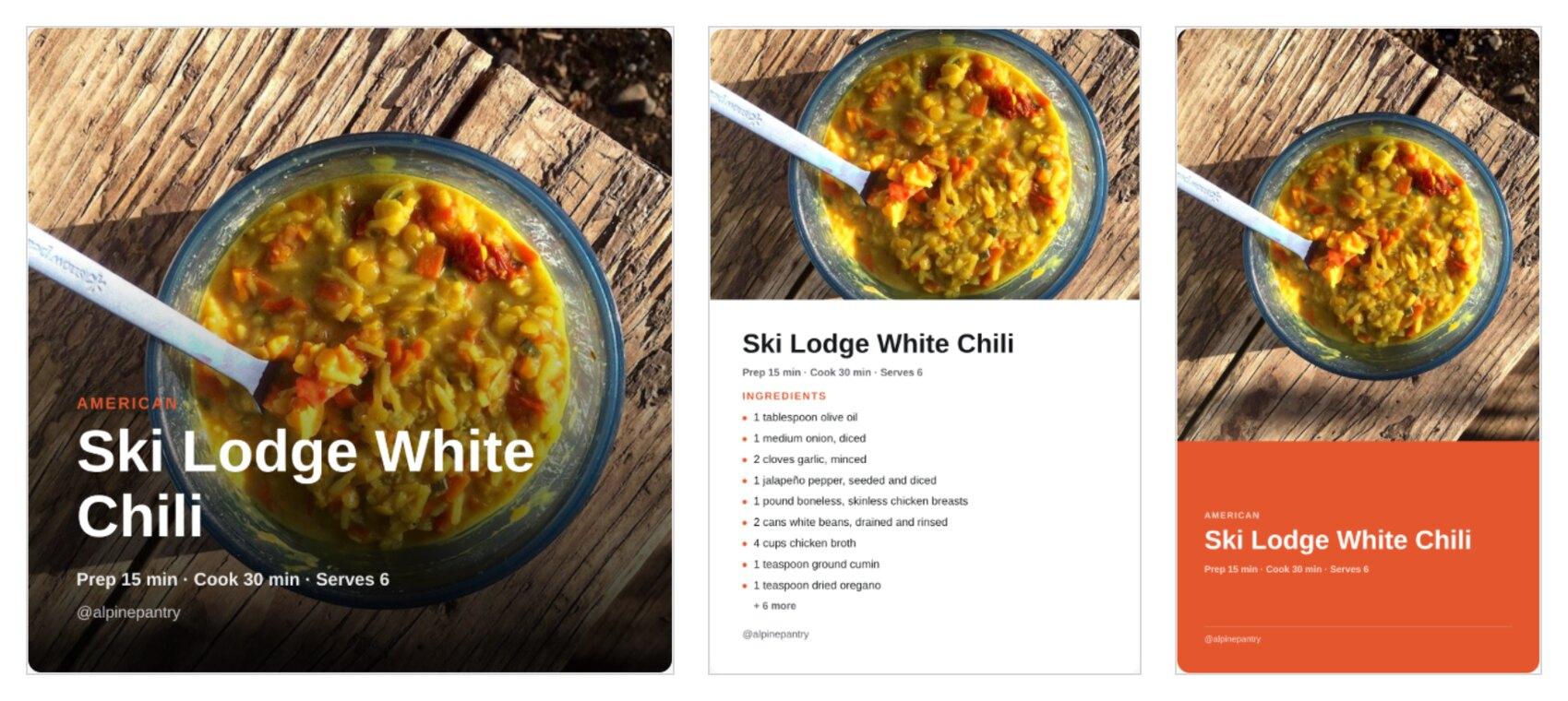
Share images are part of the Growth plan and up. On lower tier plans you can still open the window and try every design, but the preview carries a watermark and the download buttons are replaced by an upgrade button. You can compare plans on the Recipe Kit listing in the Shopify App Store.
Make a share image
- Open the recipe in Recipe Kit.
- Select Share image at the top of the page.

The window opens with your recipe already laid out.
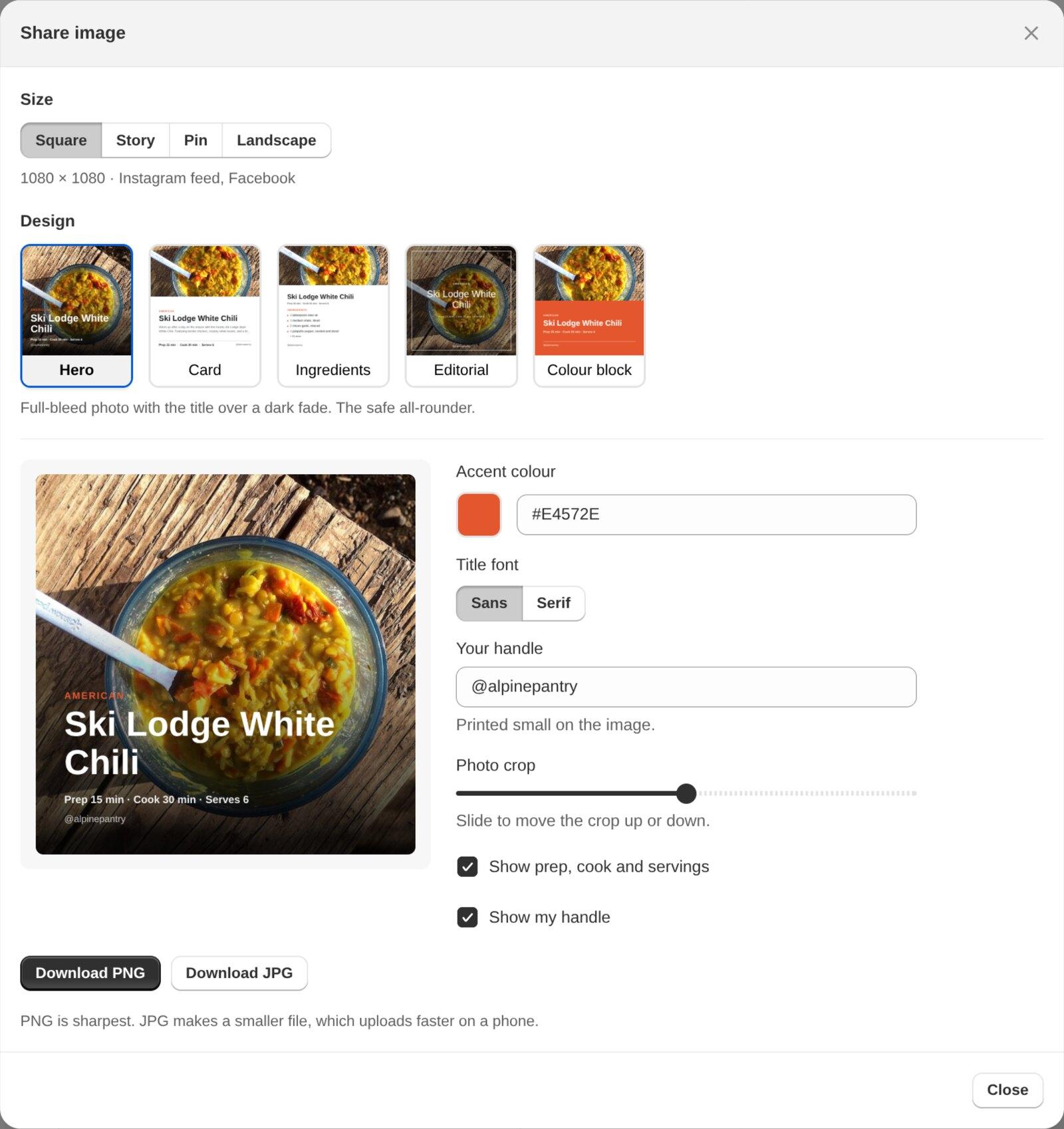
- Pick a Size for where you're posting.
- Pick a Design. The thumbnails show your recipe in each one.
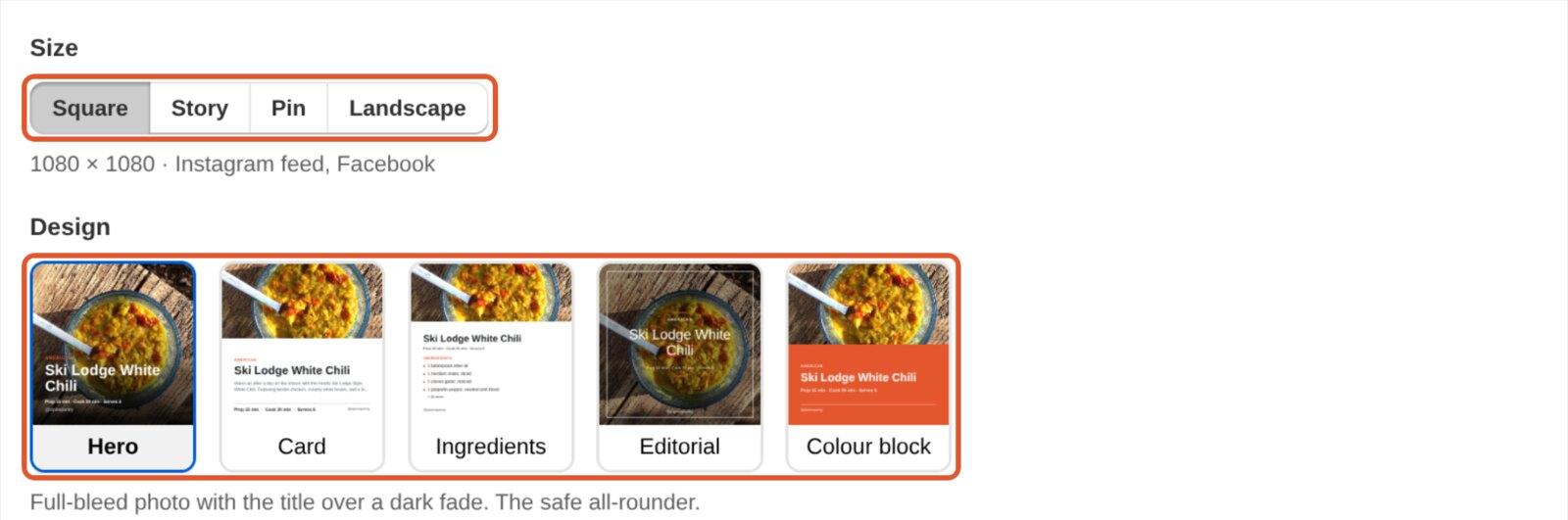
- Adjust the details if you want to (see below).
- Select Download PNG or Download JPG, then upload the file to your social app.
PNG is the sharpest. JPG is a smaller file, which uploads faster from a phone.
Sizes
Each size is the native upload size for that platform, so nothing gets cropped or squashed when you post it.
| Size | Pixels | Use it for |
|---|---|---|
| Square | 1080 × 1080 | Instagram feed, Facebook |
| Story | 1080 × 1920 | Instagram and TikTok stories, Reels covers |
| Pin | 1000 × 1500 | |
| Landscape | 1200 × 675 | X, LinkedIn, link previews |
Designs
- Hero. The full photo with the title over a dark fade. A good default for any platform.
- Card. Photo on top, with the title and description on a clean panel below.
- Ingredients. Photo plus the ingredient list. This is the one people save and come back to, which makes it a good fit for Pinterest. Long lists are shortened to fit and end with "+ 6 more" or similar.
- Editorial. Centred serif title over a dimmed photo, with lots of space.
- Colour block. Photo beside a solid block of your accent colour. The most on-brand of the five.
Adjust the details
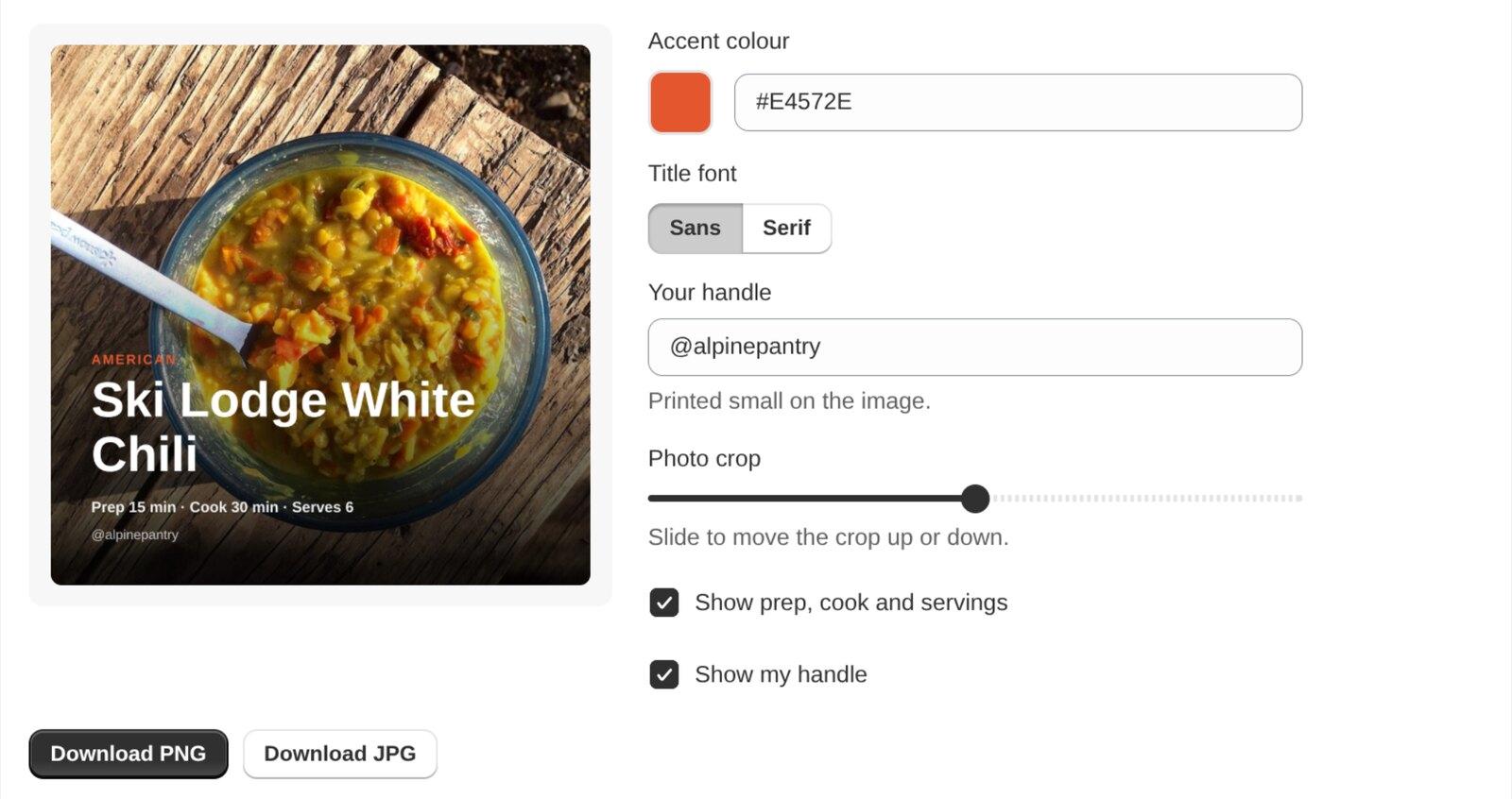
- Accent colour sets the colour used for labels, bullets and the Colour block panel. Type a hex code like
#1F6F4Aor select the swatch to pick one. - Title font switches between Sans and Serif. Each design starts with the font that suits it best.
- Your handle is printed small on the image. It starts as your store name. Change it to your Instagram or TikTok handle, up to 40 characters.
- Photo crop moves the photo up or down inside the frame. Use it when the best part of the dish sits near the top or bottom of the photo.
- Show prep, cook and servings adds the times and serving count under the title.
- Show my handle turns the handle on or off.
The preview redraws as you change things. Your choices reset each time you open the window, and Recipe Kit doesn't store the images, so download the file before you close it.
Tips
- Use a good photo. The photo does most of the work. A bright, close shot of the finished dish beats a wide shot of a table. Recipes with no photo fall back to a plain colour background.
- Make a few at once. While the window is open, download a Square for your feed, a Story for the same day and a Pin for Pinterest. Only the size and design change between them.
- Link back to the recipe. Put the recipe link in your bio, story link sticker or Pin destination, so people who like the post can find the full recipe on your store.
Troubleshooting
The Share image button has a lock icon. Your plan doesn't include share images. They are on the Growth plan and Enterprise plan.
"This recipe has no photo". Add a photo to the recipe in the Recipe media section, save, and open Share image again.
"Couldn't load the recipe photo". Recipe Kit couldn't fetch the image. Check that the recipe's photo still opens in your browser. If it was deleted from Shopify Files or its link changed, upload it to the recipe again.
Text is cut short. Very long titles shrink to fit and are shortened if they still don't fit. Try another size or design, or turn off Show prep, cook and servings to make room.