
Recipe categories and filtering
Your recipes live on Shopify blog posts, so readers browse them the way they browse any Shopify blog: by blog post tags. This article compares the ways to let readers find recipes by category, and explains how to keep your tags tidy.
The Recipe Kit Filter, tag links and the Recipe List are all free on every plan.
Ways to let readers browse
| Option | What readers get | Set up in |
|---|---|---|
| Recipe Kit Filter | Filter menus and a search bar on your blog page | Theme editor |
| Tag links in your menu | Menu items such as "Desserts" that open a page of tagged posts | Shopify's menu settings |
| Recipe List | A grid or carousel of recipes chosen by tag, by hand or automatically, on any page | Theme editor |
| Blog Article Filter Search PRO | A paid app by another developer with more filter styles | Shopify App Store |
Recipe Kit Filter
A filter bar for your blog page with up to three filters, each a dropdown or a searchable list, plus an optional recipe search bar. It filters by blog post tags. It installs as a theme section, so it needs an Online Store 2.0 theme.
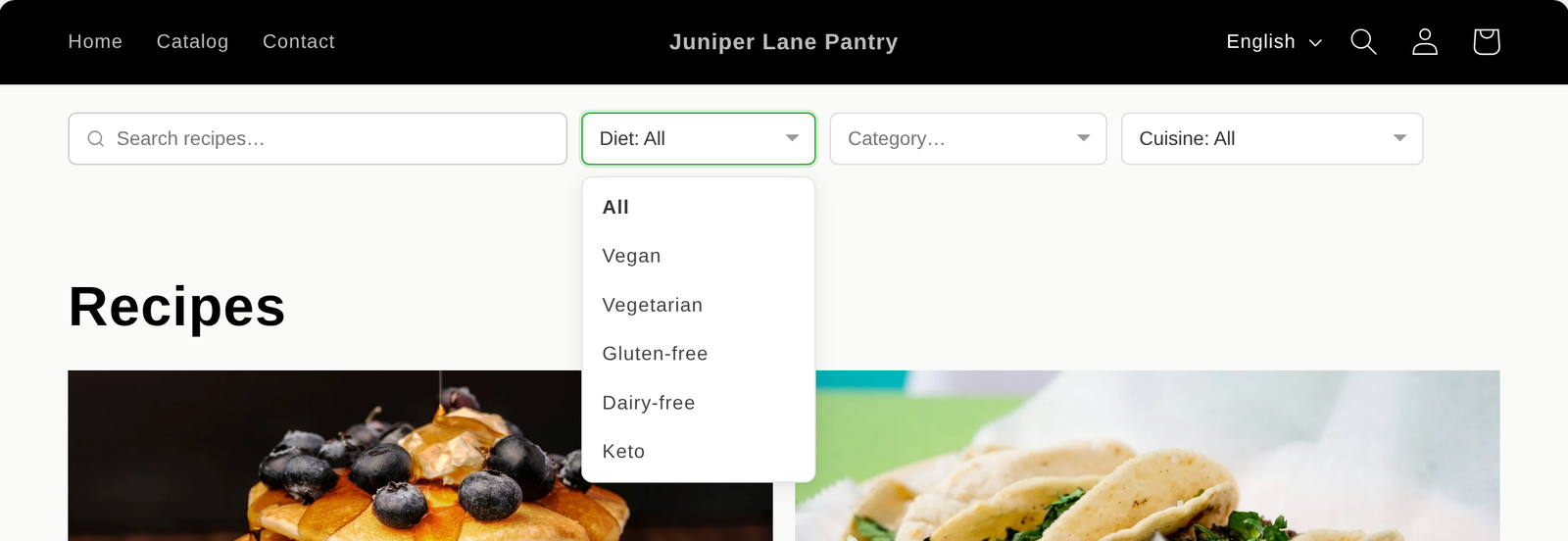
Recipe filter and search bar has the setup steps.
Tag links in your menu
No extra app needed. Tag your blog posts, then link to /blogs/your-blog/tagged/your-tag from your store menu. This suits a handful of fixed categories in your header.
Blog categories in your navigation menu has the setup steps.
Recipe List
A block you add to any page, such as your home page, a landing page or a collection page. Set its Source to By tag to show recipes with certain tags, Featured for a hand-tagged selection, Pick recipes to choose them yourself, or Related recipes on a recipe post.
Add a recipe list to any page has the setup steps.
Blog Article Filter Search PRO
A paid app by another developer, with more filter styles, featured articles and its own search. Worth a look if you have a large recipe library and need more than the free filter. Blog Article Filter Search PRO on the Shopify App Store.
Get your tags right
The filter and tag links read your blog post tags. The Recipe List's By tag and Featured sources read the recipe's Keywords in Recipe Kit. Copy your keywords to your posts as tags and the two stay the same. You can manage tags in two places.
In Recipe Kit. Add keywords to the recipe and keep Add keywords as blog post tags, below the Keywords field, ticked. It is on by default. Your keywords are copied to the connected blog post as tags each time you save. You can set it for many recipes at once with the update_blog_post_tags column in a CSV import.
In Shopify. Open the blog post and use the Tags box.
Pick one spelling for each tag and use it everywhere:
- Capital letters do not matter.
Gluten Freeandgluten freeopen the same tag page and match the same filter option. - Spaces and hyphens do matter.
gluten freeandgluten-freeshare a tag page address, but the filter and keyword reports treat them as two tags. A filter option set to one can be hidden as empty even when posts use the other.
Show recipes as a grid
Most themes list blog posts one under another, which suits long articles. A recipe blog usually looks better as a grid of photos. Many themes have a setting for this:
- In Shopify admin, go to Online Store > Themes and click Customize.
- Use the page menu at the top of the editor to open Blogs, then your blog template.
- Click the section that lists your posts, often called Blog posts.
- Look for a layout setting and choose a grid option. The name and choices depend on your theme.
- Click Save.
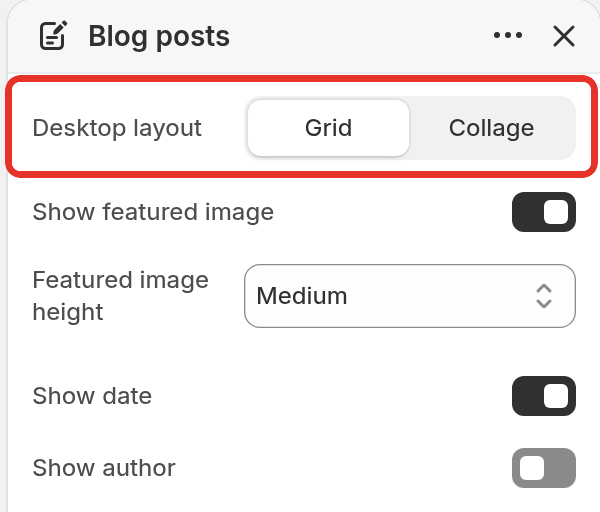
If your theme has no grid option, a Recipe List block set to Recent shows your recipes as a grid on any page.
What's next
- Recipe filter and search bar covers setting up the free filter.
- Blog categories in your navigation menu covers tag links in your menu.
- Keywords, categories and blog post tags covers keywords, categories and cuisines.