
Printing recipes
When a reader clicks Print on the recipe card, Recipe Kit opens a print-ready page in a new tab. The page has the recipe and nothing else, with no theme header, menus or footer. The reader picks what to include, then prints.
Printing is free on every plan.
What the print page shows
The print page always has the recipe title, servings, the ingredients and the directions, plus the author, category, cuisine, prep time and cook time when the recipe has them. Above the recipe, the reader gets these options:
- Image, with a choice of Thumbnail (small, beside the title) or Hero (full width, above the title)
- Description
- The recipe notes
- Nutrition
- Size: Small, Medium or Large text
- Font: Sans-serif or Serif
An option only appears when the recipe has that content. When the reader is ready, they click Print Recipe, which opens the browser's print window. The options panel does not print.
Equipment, video, FAQs and step photos are not on the print page.
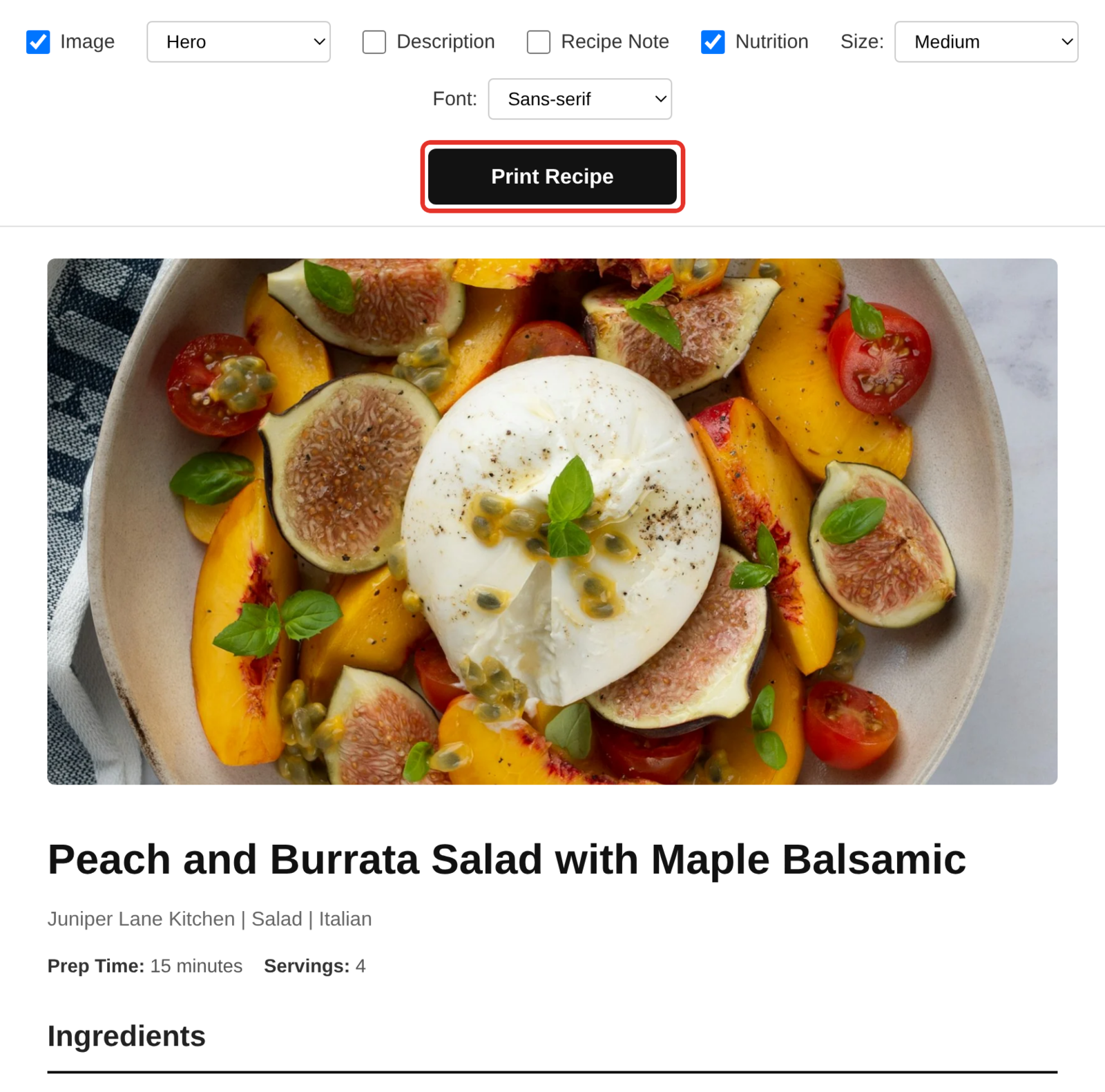
The Print Recipe button in the Recipe Bar block opens the same page. See Jump to Recipe and Print buttons.
Set the print page defaults
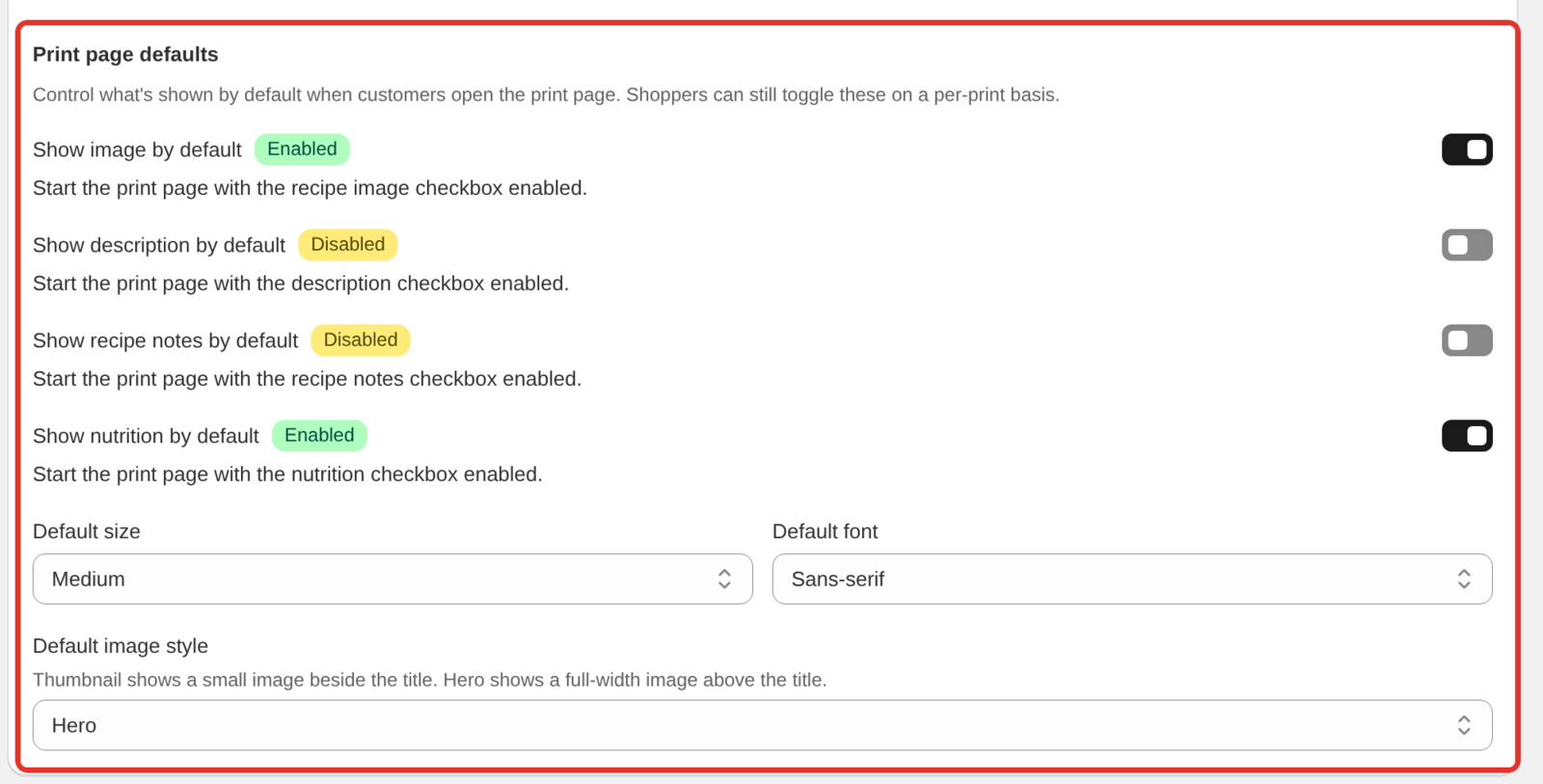
You choose what the print page shows first. Readers can still change it before they print.
- Open Recipe Kit and go to Settings.
- Click Advanced to expand it.
- Scroll to Print page defaults.
- Set Show image by default, Show description by default, Show recipe notes by default and Show nutrition by default.
- Pick a Default size, Default font and Default image style.
- Click Save.
Out of the box, everything is shown, at Medium size, in Sans-serif, with a Thumbnail image.
Hide the Print button
If you do not want readers printing from the card, add this under Custom CSS in Settings:
#rk_parent #rk_design .rk_print {
  display: none;
}
Troubleshooting
Clicking Print does nothing
The print page opens in a new tab. Check whether the browser blocked it. Most browsers show a blocked pop-up icon in the address bar, where you can allow it.
My custom CSS does not change the printout
The print page does not load your Recipe Kit custom CSS or your theme's CSS. It has its own layout. Change what it shows with the print page defaults above.
A section I expected is missing
Check the reader's options at the top of the print page first. Notes, nutrition, description and image can each be switched off there or in your defaults. Equipment, video, FAQs and step photos never appear on the print page.
Colors are missing or the layout overlaps
Check the browser's print window. With "Background graphics" off, colored parts print white. A scale other than 100% can make content overlap. Try another browser too. Chrome, Safari and Firefox each lay out printed pages a little differently.
Readers print the whole blog post instead
Some readers use the browser's own Print command (Ctrl+P or Cmd+P) on the blog post, which prints your whole page. Stores still on the original pasted-in widget (recipekit.liquid) also print the card from the blog post. In both cases your custom CSS applies, so these rules can help.
Hide your theme's header and footer when printing. The class names differ per theme, so inspect the parts that print and use their real classes:
@media print {
  .site-header,
  .site-footer,
  .announcement-bar {
    display: none !important;
  }
}
Keep the ingredients and directions from splitting across pages:
@media print {
  #rk_parent .rk_ingredients,
  #rk_parent .rk_directions {
    break-inside: avoid;
  }
}
On the original widget, if the ingredients print on top of the recipe image, give the image a fixed height:
@media print {
  #rk_parent .rk_image {
    display: block !important;
    height: 350px !important;
    max-height: 350px !important;
    clear: both;
  }
}
Adjust the two 350px values if the image prints too small or pushes the recipe onto a second page. To move to the current widget and its print page, see Upgrading to the new Recipe Kit widget.
Still not right
Contact support or email [email protected] with a link to the blog post, your theme name, the browser you used, and a PDF of what printed. Print problems are hard to guess at and quick to fix once we can see the output.
What's next
- Customizing the recipe card covers the other card settings, including the print defaults.
- Jump to Recipe and Print buttons covers adding a Print Recipe button at the top of your posts.
- Custom CSS styling covers the classes to target on the card.