
Translating Recipes with Translate and Adapt
⚠️ Beta feature: Metaobject-based recipe translations are still in beta. If you run into bugs or unexpected behavior, please contact support so we can investigate.
Once you've enabled multi-language translations in Recipe Kit, you can use Shopify's free Translate and Adapt app to translate your recipe content. This guide covers the translation workflow from start to finish.
Before You Start
Make sure you've completed the one-time setup:
- Enable Multi-Language Translations in Recipe Kit settings
- Install the Translate and Adapt app from the Shopify App Store
- Add at least one language to your store (see Adding Languages below)
Adding Languages to Your Store
If you haven't already added languages to your Shopify store:
- Go to Settings > Languages in your Shopify admin
- Click Add language
- Select the language you want to support
- Click Add
- Click Publish when you're ready for customers to see that language on your store
Note: You can add languages and begin translating before publishing them. Unpublished languages won't be visible to customers.
Translating Using Auto-Translation
Shopify's Translate and Adapt app supports auto-translation for many languages:
- Open a recipe or label entry
- Click Auto-translate at the top
- Review the generated translations
- Edit any translations that need adjustment
- Click Save
Auto-translation is a great starting point, but we recommend reviewing the output — especially for ingredient names, cooking terminology, and measurements that may vary by region.
Auto-translation is a great starting point, but we recommend reviewing the output - especially for ingredient names, HTML fields like description and notes, cooking terminology, and measurements that may vary by region.
Translating Manually
Open Translate and Adapt
- Go to Apps > Translate and Adapt in your Shopify admin
- Select the language you want to translate into
Find Your Recipe Content
Recipe Kit content appears under Metaobjects in the Translate and Adapt app. You'll see several RecipeKit entries:
- RecipeKit Recipe (Translatable) — Your recipe content (one entry per recipe)
- RecipeKit Labels — UI labels like "Ingredients", "Directions", "Prep Time"
- RecipeKit Labels (Nutrition) — Nutrition section labels like "Calories", "Protein", "Fat"
Translate a Recipe
- Click on a RecipeKit Recipe (Translatable) entry
- You'll see the original text on the left and translation fields on the right
- Translate each field:
- Title — The recipe name
- Description — Recipe summary
- Ingredients — Each ingredient (listed individually)
- Directions — Each step (listed individually)
- Equipment — Kitchen tools needed
- Category and Cuisine — Recipe classification
- Recipe Note — Any additional notes
- Tags — Recipe tags
- Prep Time and Cook Time — Time descriptions
- Click Save
Tip: You don't need to translate every field at once. Untranslated fields will fall back to your store's default language.
Translate UI Labels
UI labels are the headings and text that appear around your recipe content (like "Ingredients", "Servings", "Print", etc.).
- Click on the RecipeKit Labels entry
- Translate each label into your target language
- Click Save
- Repeat for RecipeKit Labels (Nutrition) if your recipes include nutrition information
Tip: You only need to translate labels once — they apply to all recipes across your store.
Updating Translations After Recipe Changes
When you edit a recipe in Recipe Kit, the updated content syncs to Shopify automatically. If that recipe has existing translations, Recipe Kit will show a banner in the recipe editor:
"This recipe has been translated. Visit Translate and Adapt to update translations for the changed content."

Click the link in the banner to go directly to the Translate and Adapt app
Important note: translations do not update on their own! Follow these steps to update recipe translations when changes are made to a recipe:
-
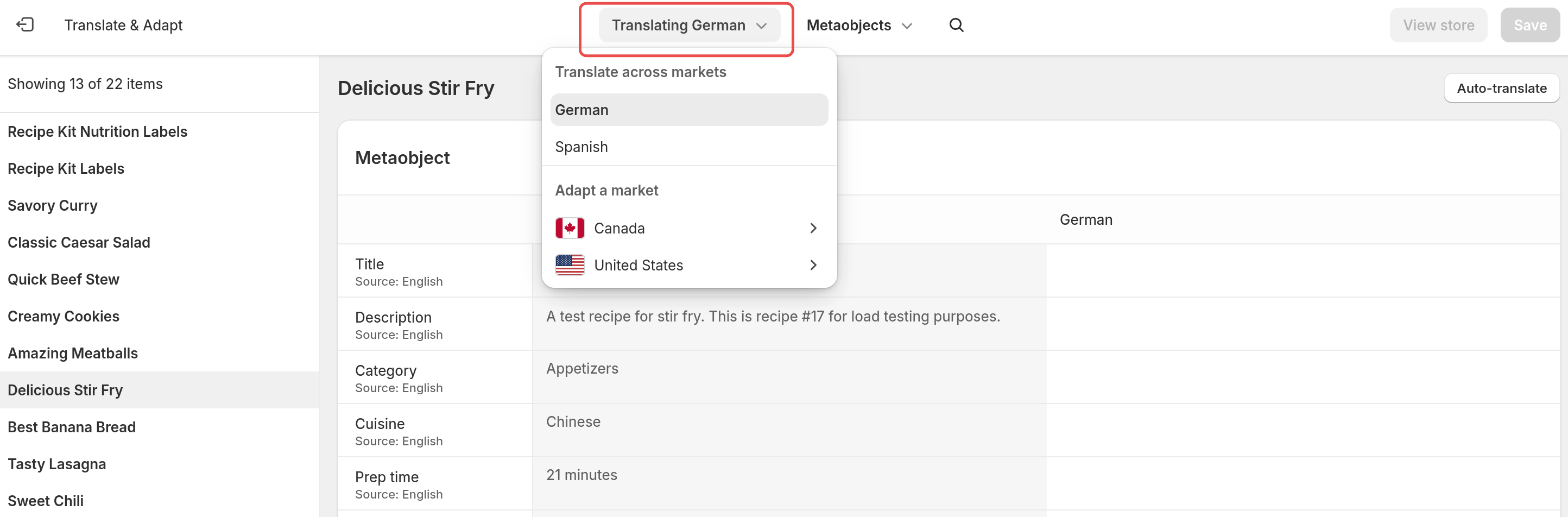
In Translate and Adapt for the recipe metaobject, select a language from the dropdown at the top of the page
-
For each field that has been edited, manually delete the outdated translation. In this example, the Description has been changed, so clear the translated cell for the Description:
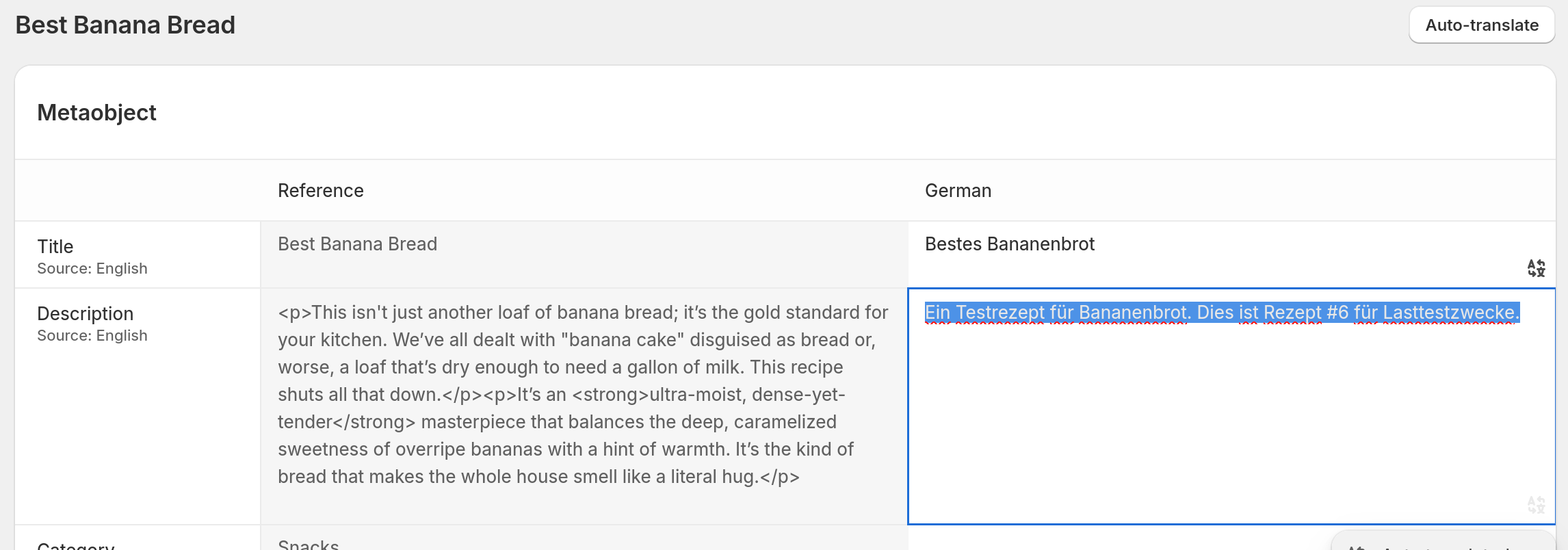
- Click "Save", then "Auto-translate" to trigger Shopify's translate to fill in the blank space with an updated translation, or manually fill in the cell that was just cleared with the new translation


Checking Translation Progress
From Recipe Kit
- Go to Settings in Recipe Kit
- Scroll to the Translation Status section
- You'll see a breakdown per language:
- Number of recipes fully translated
- Percentage of UI labels translated

From Translate and Adapt
- Open Translate and Adapt
- Select a language
- Browse the Metaobjects section to see which Recipe Kit entries have been translated
How Customers See Translations
Shopify handles language detection automatically:
- If your store uses URL-based locales (
/fr/,/es/,/de/), customers see the translated version when they visit the localized URL - If using Shopify's language selector, the page updates to the selected language
- Untranslated fields fall back to your store's default language
No changes to your theme or widget are needed. The same Recipe Kit widget displays the correct language automatically.
Troubleshooting
Recipe content not appearing in Translate and Adapt
- Confirm you've completed the translation setup in Recipe Kit settings
- Check that the recipe is published (not in Draft status)
- Wait a few moments and refresh — newly saved recipes may take a moment to sync
Translations not showing on the storefront
- Verify the language is published in Settings > Languages
- Check that the translation was saved in Translate and Adapt
- Clear your browser cache and visit the localized URL (e.g.,
yourstore.com/fr/blogs/recipes/your-post) - If using the language selector, ensure it's properly configured in your theme
Some fields show the default language
This is expected for fields that haven't been translated yet. Shopify falls back to the default language for any untranslated content. Translate the remaining fields in Translate and Adapt to resolve this.
"Metaobjects" section not visible in Translate and Adapt
- Ensure Recipe Kit has finished the initial sync (check Settings for the completion checkmark)
- Try refreshing the Translate and Adapt app
- If the issue persists, go to Recipe Kit Settings and click Retry to re-sync your recipes
What's Next?
- Enabling Multi-Language Translations — Initial setup if you haven't done it yet
- Installation Guide — Widget setup and theme installation